
Consent forms can be view, signed and saved from the Consultation Tool
- Enter the ‘Consultation Tool’ via the Calendar Appointment, or by selecting the Patient in the Patient List
- Select ‘Consent Forms’ from the list on the left hand side of the screen
- A list of accessible ‘Consent Forms’ will appear in the main window
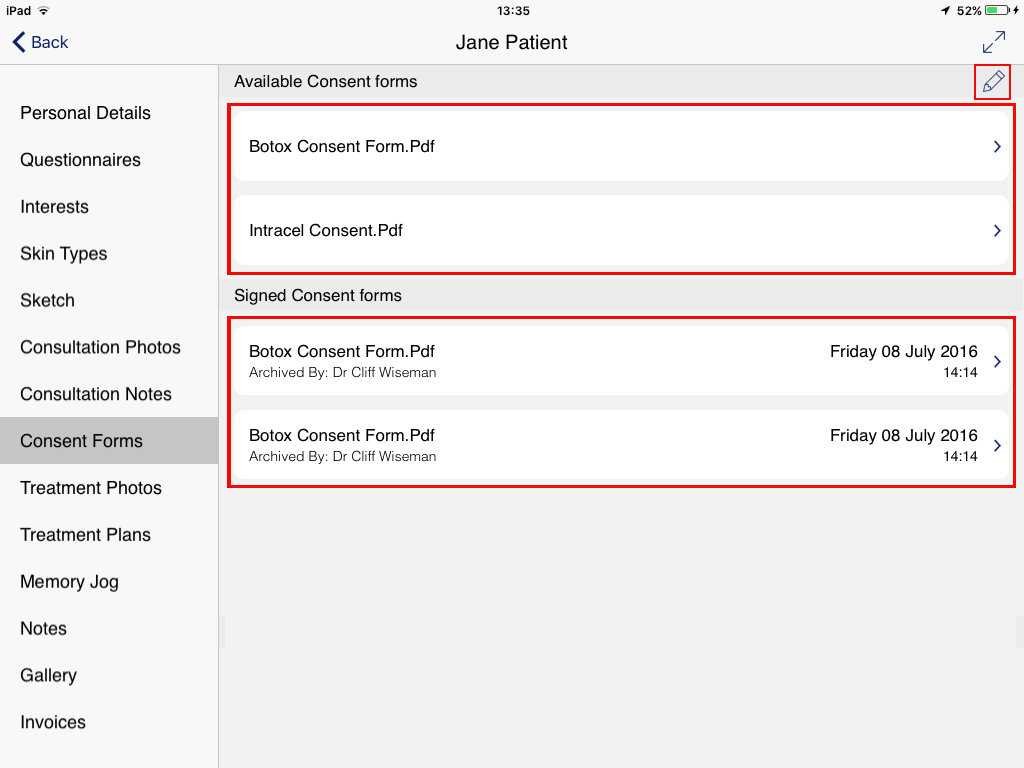
- Available Consent Forms These are a list of all currently available consent forms.
- Signed Consent Forms This section displays a list of signed consent forms, along with the date they were signed by the patient. It is possible to have multiple signed copies of the same consent form.
- Edit Tapping this button allows you to edit the order in which the available consent forms are displayed.
- Tap on the required Consent Form from those in the “Available Consent Forms” section
- The main window will refresh to display the selected Consent Form
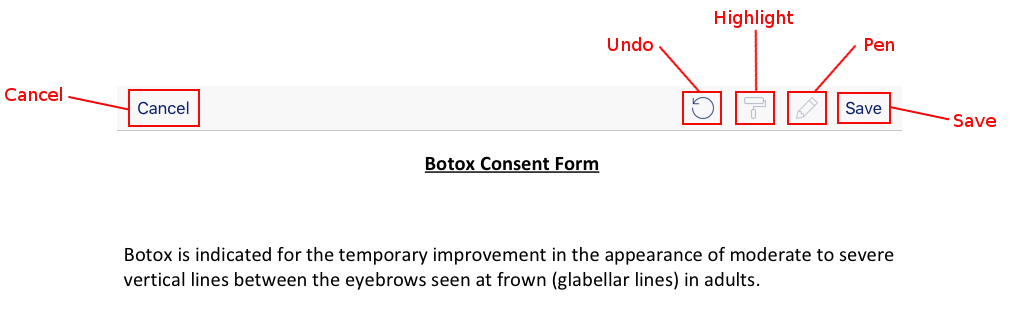
- Cancel Tapping the Cancel button will return you to the previous screen. No changes will be saved.
- Undo Tapping the Undo button undoes the last alteration to the Consent form.
- Highlight This tool allows you to highlight sections of the consent form.
- Pen This tool allows you to write on the consent form.
- Save Saving the consent form will create a date stamped copy, embedding any highlighted or written notes into the document.
Please Note: when using the Highlight and Pen tools you will be unable to scroll the form. In order to navigate the form, you must toggle both tools to their “off” / “grayed” positions.
- Once your alterations to the consent form have been made, tap the “Save” button to exit and save your signed form.
- You will be returned to the previous screen, and your saved form will appear under the section “Signed Consent Forms”, below all the “Available Consent Forms”.

- Form Name The name of the form.
- Practitioner Name The Practitioner who saved the form.
- Date Stamp Time and Date the form was saved.
- Tap on the signed Consent form you wish to view – the consent form can no longer be edited.
- You can freely navigate the document, and use pinch to zoom to increase or decrease the size.
- Tapping the Companion Button will share the signed form with patient’s Patient Application.
- The export button will allow you to Print and share this form in other ways, depending on how you have set up your iPad.
- Tapping the “Done” button will return you to the previous screen.