
The Price List allows you to manage the prices assigned to your products and services, and will be accessed directly within ‘Invoices’.
- From the bottom of the Control Centre menu drawer select the ‘Set Up’ menu
- Select the “Price List”
- Click the ‘+’ icon to ‘Add a New Price List item’.
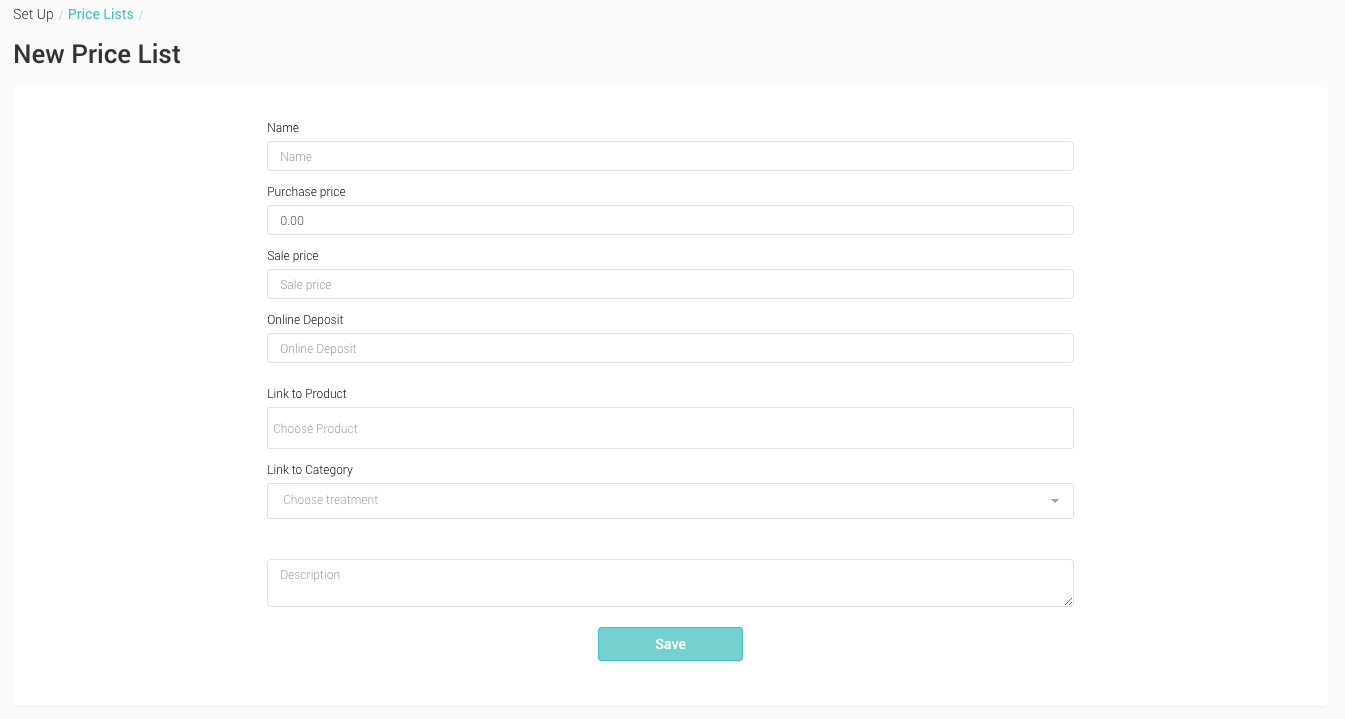
- Name The name of the item – as it will appear on invoices
- Purchase Price The cost price (how much you paid for the item)
- Sale Price The amount to be invoiced (how much the customer will be charged)
- Online Deposit The deposit amount used for online booking
- Link to Product Link to a product for stock control management
- Link to Category Link to a Treatment Category for reporting purposes. This will allow you to group numerous products under one category.
- Enter a ‘Name’ for the Price List item.
- ‘Purchase Price’ is optional, but you should add a ‘Sale Price’.
- Both ‘Link to Product’ and ‘Link to Category’ are optional.
- Once completed click ‘Save’
- The item will now be available for selection in ‘Invoices’.