
You can send email correspondence from within the Control Centre. Correspondence is assigned to a patient and accessed from within their patient record.
Sending Correspondence
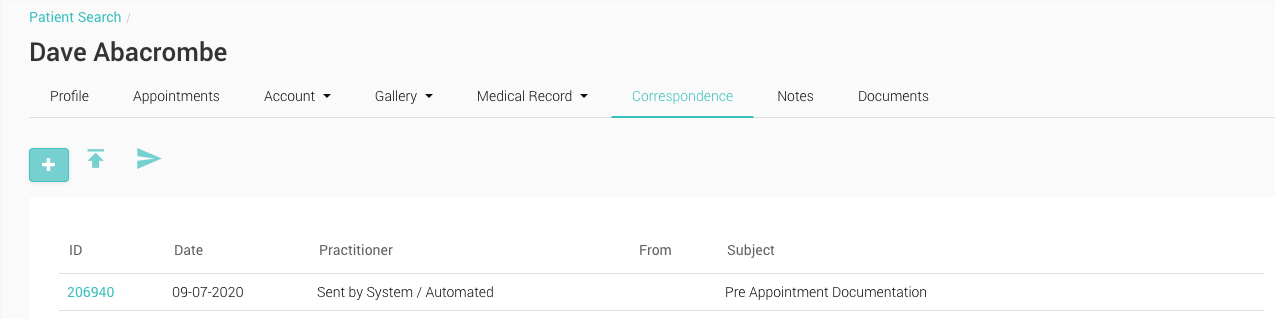
- On the Control Centre select ‘Patient’, and select a patient
- Click the ‘Correspondence’ menu
- Click the ‘+’ button
- A new correspondence page will appear with empty fields
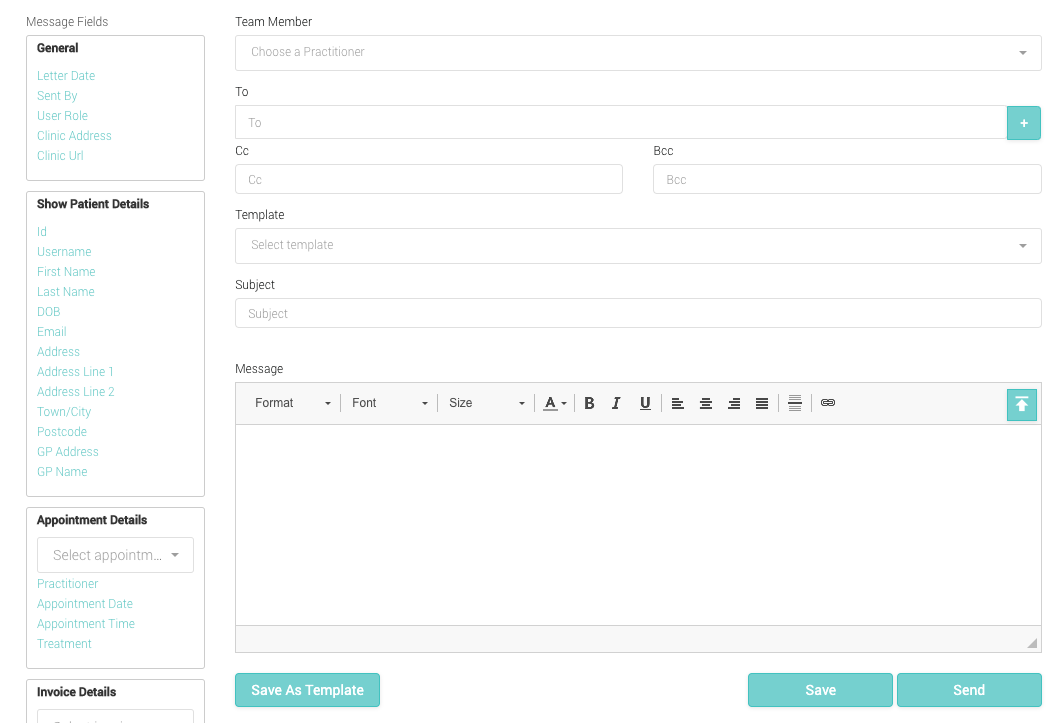
- Choose a Practitioner from the list of available Practitioners. A practitioner’s email address will have to be verified in order to send an email
- Add an emial address in the ‘To’ field, or press the ‘+’ button to automatically add the patient’s registered email address
- CC and BCC fields are optional
- Add a ‘Subject’ in the subject field
- If you would like to select from one of your templates, you can do so from the ‘Template’ field
Adding Content
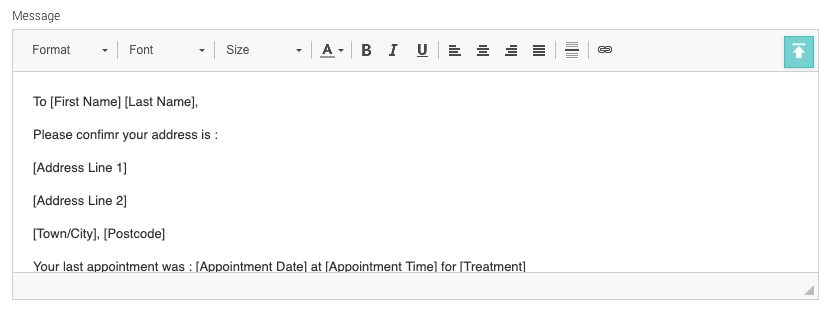
- Email Content can be added using the ‘Message’ field
- You can change the format, font style and size using the toolbar at the top of the content box
- Patient date fields can be added to pull in data into the body of the email using the ‘Message fields’ on the left hand side. These will add metatags (eg. [Postcode]) that will be replaced with the relevant patient data.
- You can attach a file to the email using the upload button on the top right of the message box
- Once completed you can either click on the ‘Send’ button to send the email, ‘Save’ to save it without sending, or ‘Cancel’ to cancel you work