
The ability to add prescriptions is available via the Practitioner Application. The first step is to enable products to be selected for prescriptions. Once this has been set up, the prescription can be created by a practitioner on the app. Prescriptions are visible and printable via the Control Centre.
Set up
- Navigate to the Product page
- Select the product you wish to make available for prescriptions
- Under the Product name will be a toggle enabling the use of the product for prescriptions
- Switch the toggle to on will make the product visible to the practitioner under the ‘Prescriptions’ menu on the Practitioner App
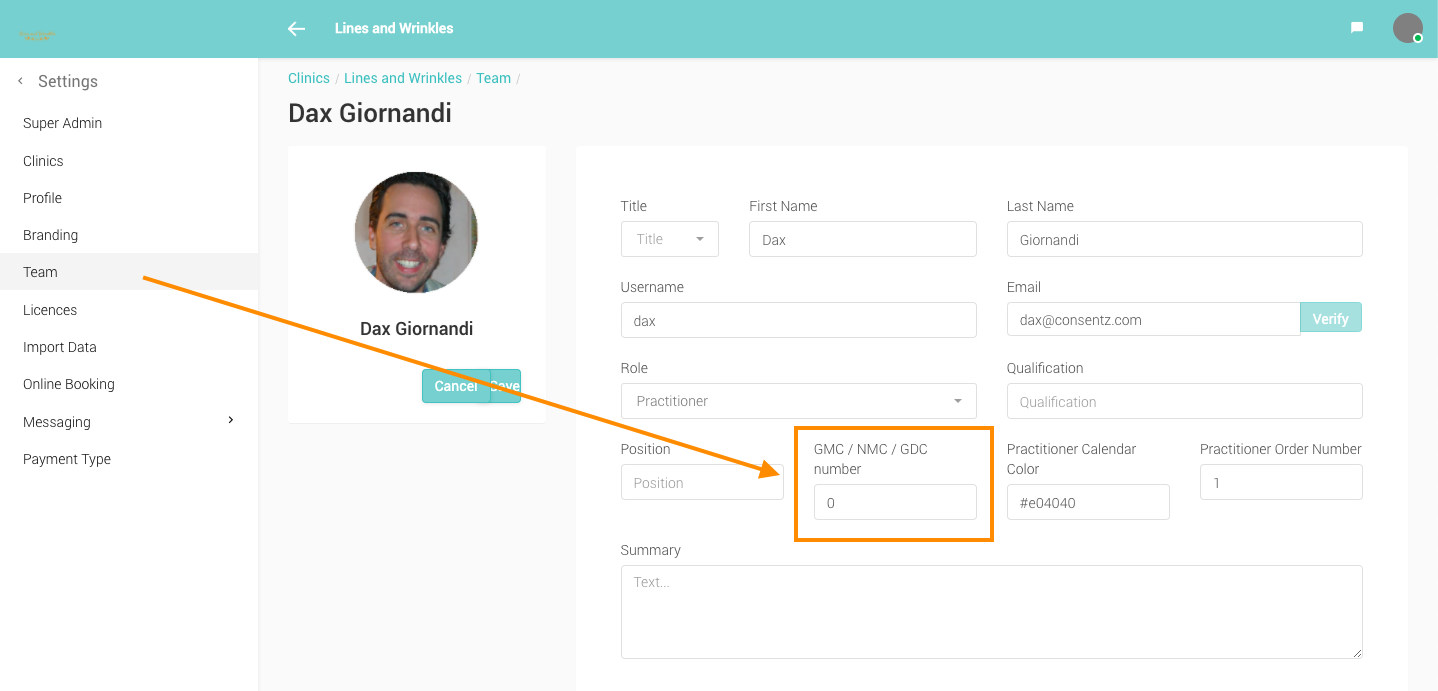
- To add a GMC or equivalent number to the Practitioner, navigate to the Team page
- Select the practitioner, and enter their profile page
- In the GMC field, enter their details
Creating Prescriptions
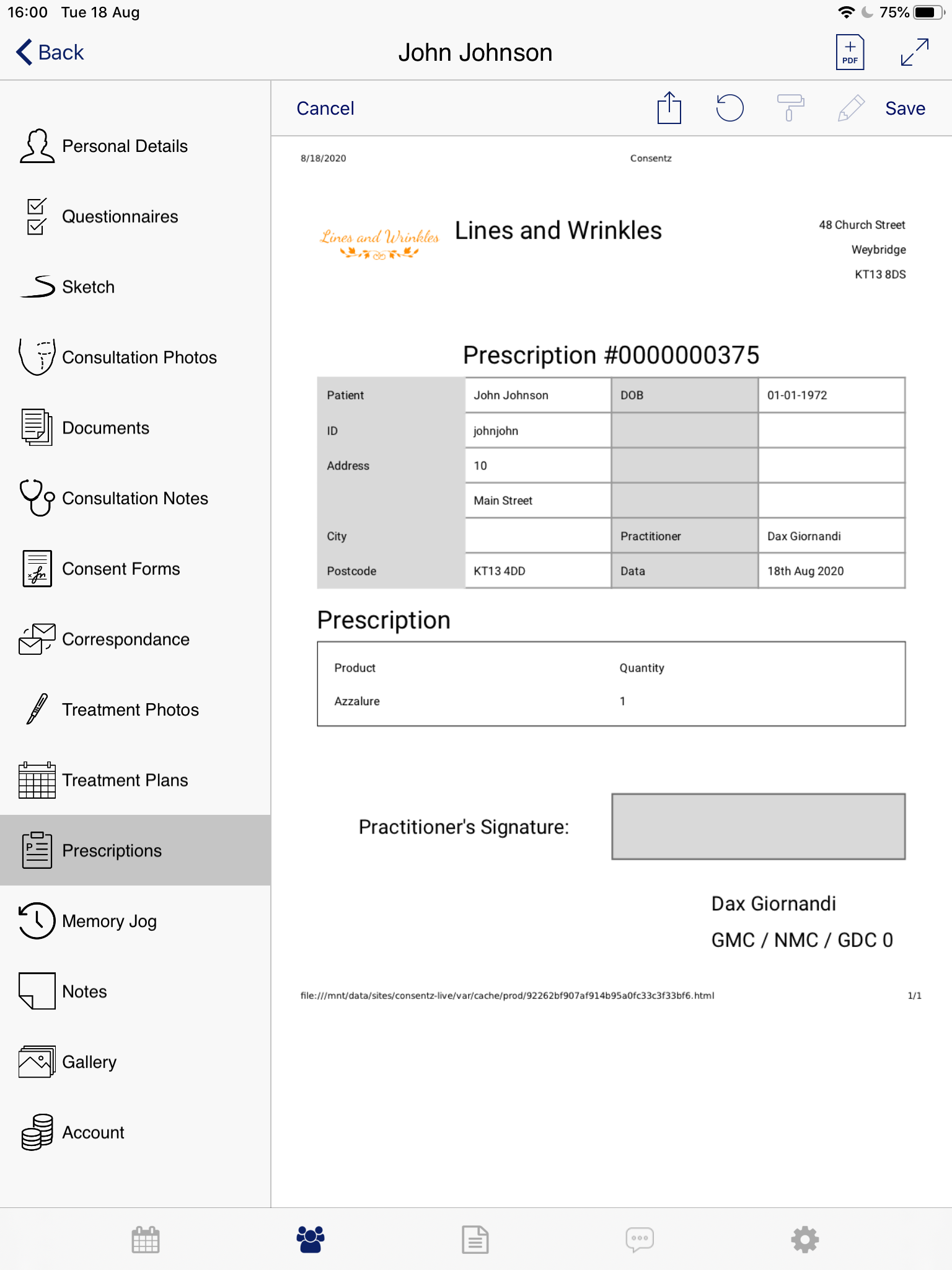
- On the Practitioner App, navigate to ‘Prescriptions’
- Tape the + button to create a new prescription
- Select the product you wish to prescribe
- Select the amount
- Tap the tick to create a prescription
- Sign the Prescription in the same way you would a Consent Form
- Tap ‘Save’ to save the prescription as a pdf
Printing Prescriptions
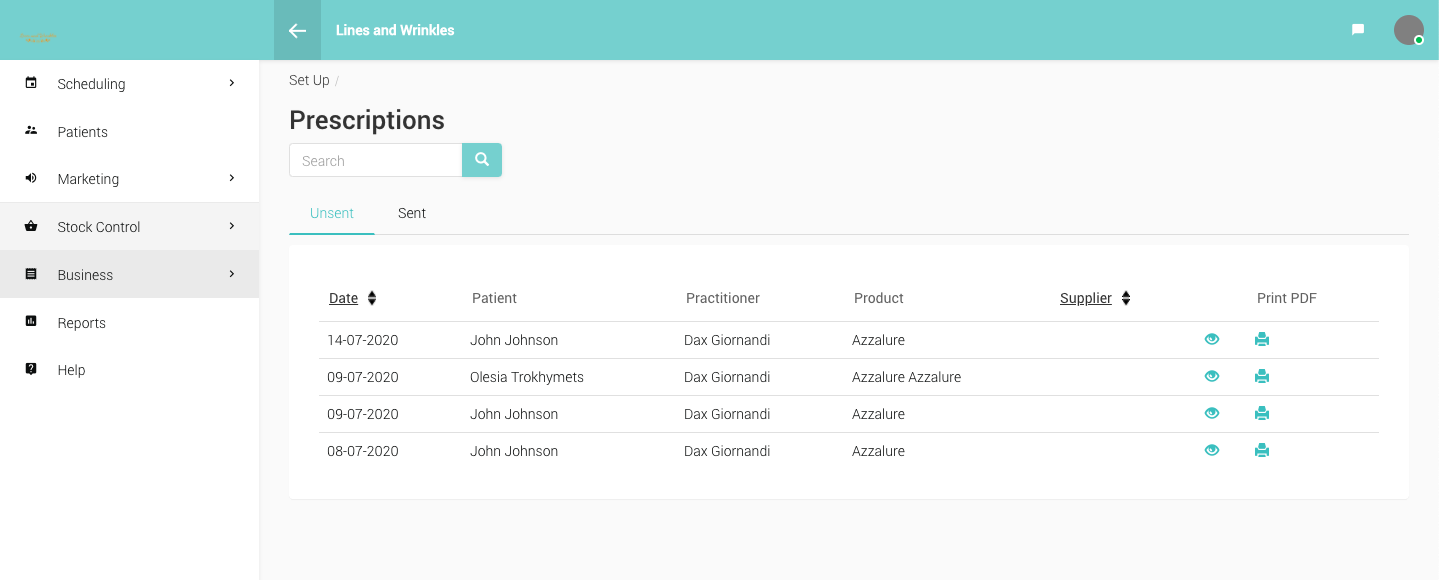
- On the Control Centre, navigate to ‘Stock Control’ – ‘Prescriptions’
- You will be presented with a list of current, ‘unsent’ Prescriptions
- Clicking on the ‘Print’ icon will cause the prescription to be printed, and moved to the ‘Sent’ section.