
With the new Control Centre Calendar (introduced Jan’19) you can link a practitioner’s calendar with an external Calendar application, such as ‘Calendar’ on your iPhone. In order to make the connection you first have to generate an .ics file link, unique to each practitioner, which can be done from within the Control Centre.
Generating the .ics file link
- On the Control Centre, log in with the practitioner credentials – those that are normally used for the Practitioner iPad app
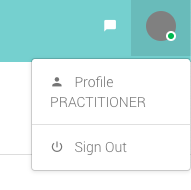
- Once logged in, look for the circle at the top right hand side of the screen, and click on it
- Click on the word ‘Profile – Practitioner’
- The last row of information contains the .ics file link
- Click on either the copy button to copy the code, or the email icon to email yourself a copy of the code. This will make it easier to add the code to a phone application

Once the file has been generated, you will need to add it to your application of choice. Instructions for adding to an iPhone can be found below. Android devices should refer to their handset provider for further details – although the process should be similar for most Calendar applications regardless of operating system.
Linking the Account with an iPhone
- Launch the Settings app on your iPhone
- Tap on Passwords & Accounts
- Tap on ‘Add Account’ under the Accounts section
- Tap on the last option, ‘Other’
- Tap on ‘Add Subscribed Calendar’
- Enter or paste in the .ics link from this email
- Tap Next, followed by Save
- Your Consentz Calendar will now appear in the iPhone Calendar app