
Consentz has integrated with Dojo for Payment Processing of Credit Card Payments.
In order to set up the link you will require:
- a Dojo account
- a Dojo Terminal
- a confirmation email from Dojo whic contains your account details
Once you have been approved by Dojo and have recieved and set up your terminal with them, you can link your terminal with Consentz.
From the Control Centre
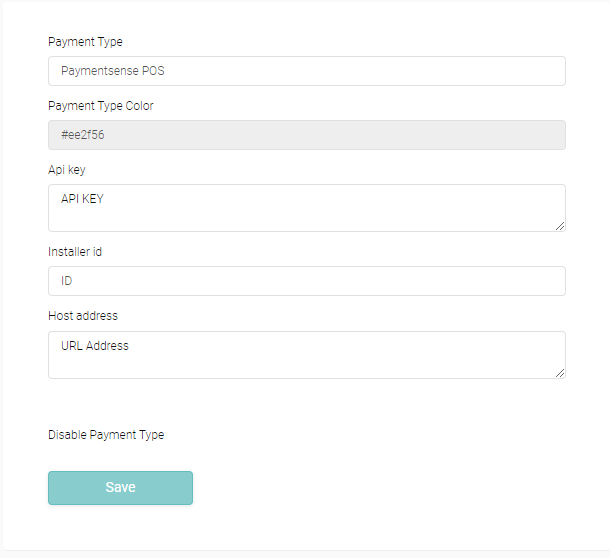
- Navigate to ‘Settings’ – the middle of the three grey buttons at the bottom of the Menu Drawer
- Select the ‘Payment Type’ option
- You’ll be presernted with a list of existing paymetn types
- Click on ‘Paymentsense POS’ to begin the process of linking the accounts
- You can change the payment type name on this page should you wish to
- Enter the API Key from your Dojo confirmation email into the ‘API Key’ field
- Enter the URL link from your Dojo confirmation email into the ‘Host Address’ field
- Press ‘Save’ to begin processing the link

- Once back on the Payment Type page, click the terminal icon to the right of ‘Paymentsense POS’ (or the name you have changed the payment type to)
The following page should display the terminal ID assigned to your account.
If no terminal is displayed, press the cloud button at the top of the page.
- Enter a name for the terminal in the ‘Title’ field (eg. front desk)
- Click ‘Save’ to update changes
This completes the link with Dojo.
Paying by Card
Once an invoice has been created (from Patients – View/Add to Account – +INV), press ‘Pay’ and select the payment type ‘Paymentsense POS’ (or the relative name). Complete the ‘Pay Invoice’ pop up as normal, and press ‘Pay’. The amount entered in the ‘Total to Pay’ field will appear on the terminal screen. On-screen instructions will appear during the payment process and the invoice will update accordingly once the process has completed.