
Once the Twilio account has been set up (see ‘Twilio Set Up’), the next step is to enter the text that will be sent with reminder messages, and the frequency that they will be sent.
- From the Control Centre, select the ‘Settings’ from the bottom of the menu drawer
- Select ‘Messaging’ followed by ‘Appointment Reminders’
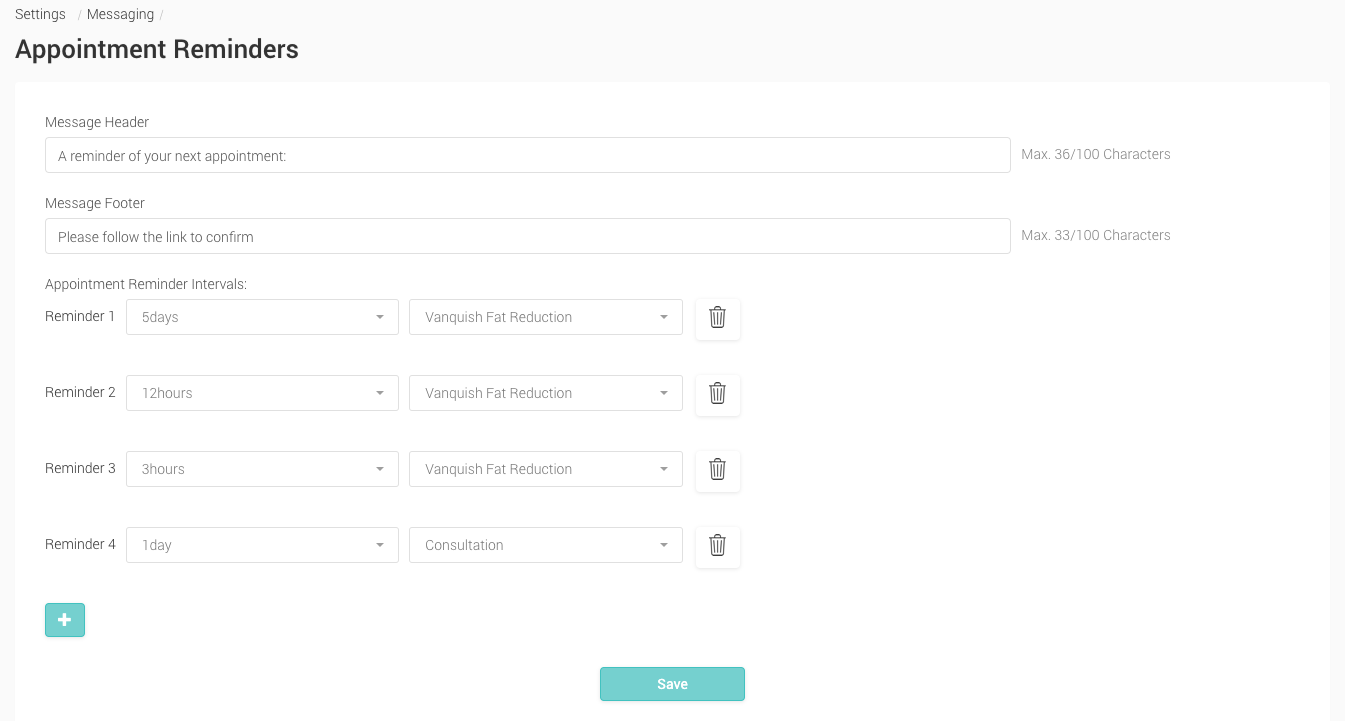
- Message Header This text appears before the time and date of the appointment reminder
- Message Footer This text appears after the time and date of the appointment reminder
- Appointment Reminder Intervals This is the amount of time before the appointment that a reminder is sent out. You can add as many reminders as you wish, but using the ‘+’ button.
- Enter the required text into both the Message Header and Message Footer.
- Click Save to save your changes.
The message format appears as shown:
message header Day Date at Time with Practitioner. message footer
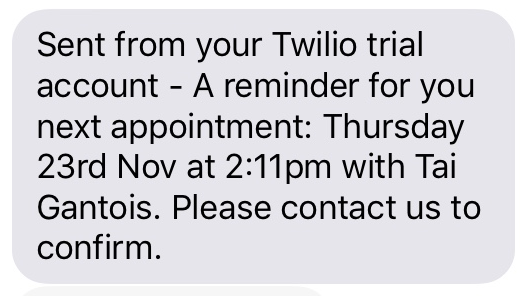
‘Sent from your Twilio trail account’ will be removed once your Twilio account is upgraded.