
Consultation notes can be recorded in full from the Consultation Tool
- Enter the ‘Consultation Tool’ via the Calendar Appointment, or by selecting the Patient in the Patient List
- Select ‘Consultation Notes’ from the list on the left hand side of the screen
- A list of recorded ‘Consultation Notes’ will appear in the main window
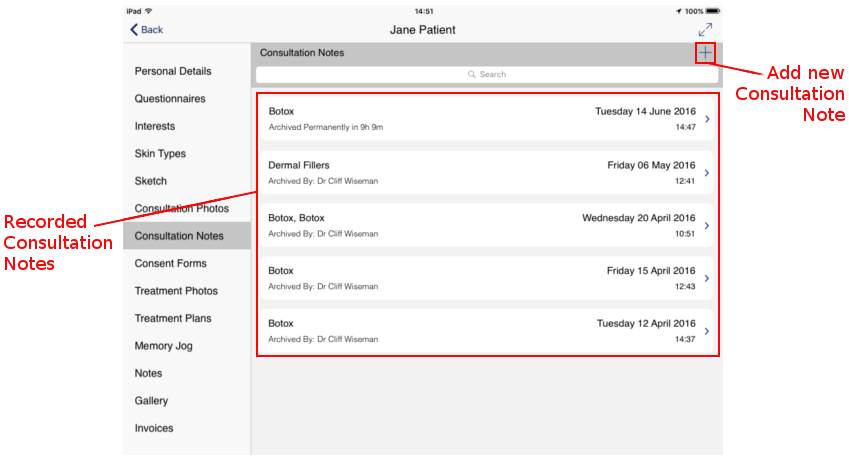
- To create a new Consultation Note, press the ‘+’ button on the top right hand side of the screen
- The main window will refresh to display the new Consultation Note
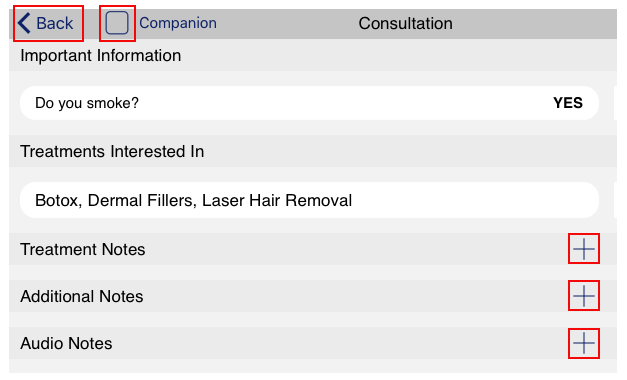
- Important Information Important answers to questions are displayed here if the “Show as Important Information (Consultation Header)” option was selected in Question Details, available from the Settings and Questionnaire sections
- Treatments Interested In Options selected in the ‘Interests’ section of the Consultation Tool are displayed here.
- Treatment NotesThe main Consultation Notes will be recorded here. Pro Forma text based on the Treatment will automatically be displayed once a treatment has been selected
- Additional Notes A free from text area where you can record additional typed notes
- Audio Notes Record audio using the Audio Notes section
- Tap the ‘+’ symbol next to ‘Treatment Notes’ to create a new Treatment Note
- A new window will appear with a list of all available Treatments for your clinic
- Tap on the respective Treatment for this Consultation, and any pro forma text associated with that Treatment will appear in the Treatment Notes section
- Additional Notes can be recorded by tapping the ‘+’ symbol next to ‘Additional Notes’. Upon doing so a new note is created and the keyboard will appear allowing you to write the note.
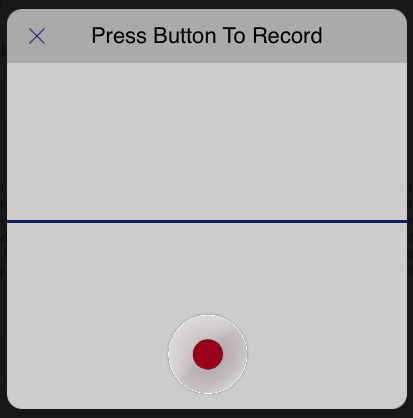
- Audio notes can also be recorded by tapping the ‘+’ symbol next to the ‘Audio Notes’ section. Doing so will create a new Audio Note, a record window will appear.
- Pressing the Record button will begin recording audio for the note.
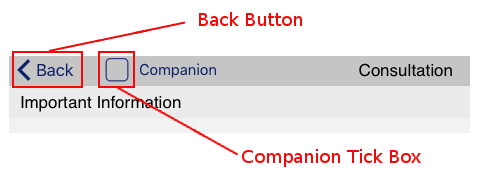
- If you wish to share this information with your patient, you can tap the ‘Companion’ tick box at the top of the Consultation Note. It is note necessary to do this immediately, you can return to this note at any time to share it with your patient
- To complete the Consultation Note, press the ‘Back’ button at the top left of the main window
- This will return you to the list of recorded Consultation Notes
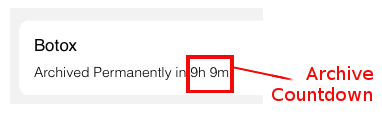
- Your note will be displayed with the phrase ‘Archived Permanently in…’ This indicates the amount of time remaining to add or edit your note until it is permanently saved
You will no longer be able to alter the note once archived