
Patient Mode allows you to hand the iPad over to your Patient for them to:
- Check and update their personal details
- Complete Questionnaires that you have selected for them
- Watch and learn about available Treatments
Before Entering Patient Mode It is advised that you change the pin to your preferred code. The pin is required to exit ‘Patient Mode’. The default code is ‘1234’.
There are two way to enter ‘Patient Mode’, either via the Calendar or from the Patient List.
Calendar
- From the Main Home Screen select the ‘Calendar’
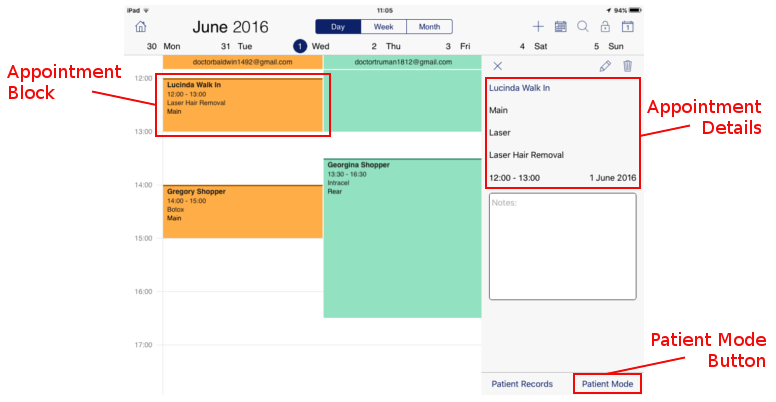
- Navigate to the desired date and select an appointment by tapping the ‘Appointment Block’
- Details of the appointment appear on the right hand side of the screen
- At the very bottom right of the screen is the ‘Patient Mode’ button.
- Tapping the ‘Patient Mode’ button will initiate Patient Mode
Patient List
- From the Main Home Screen select ‘Patient’
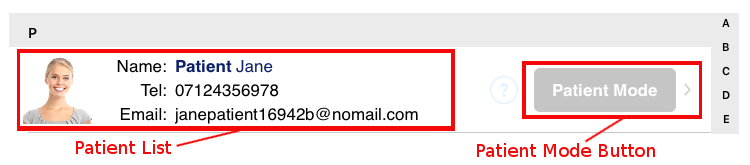
- Navigate to the desired Patient in the Patient List
- To the right of the Patient’s name is the ‘Patient Mode’ button.
- Tapping the ‘Patient Mode’ button will initiate Patient Mode