
It is possible to create a new patient record in both the Practitioner Application and using the Consentz Control Centre.
Below is an explanation on how to add a new patient from the Practitioner Application, using the Calendar function.
Quick Add: Adding a new patient from the Calendar is intended to be used when a new Patient is booking an appointment. As such, you create a new Patient by making an Appointment
- From the Home Screen, select the “Calendar” option.
- Once loaded, navigate to the date that you wish to make an appointment.
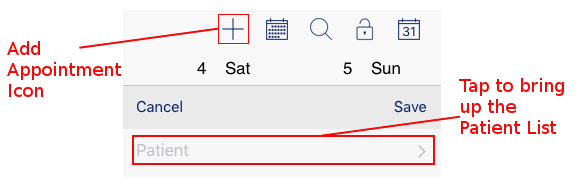
- Press the ‘+’ icon on the top right hand side of the screen.
- The Appointment Form will appear. Tap the ‘Patient’ option.
- Your Patient List will appear. Tap the ‘Add New Patient’ above the ‘Search’ Bar.
- Fill in the ‘Add New Patient’ screen.
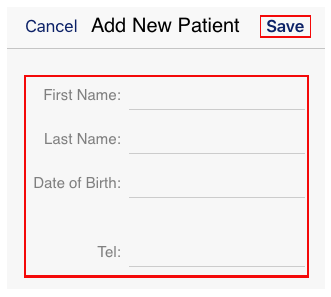
- First Name: Add the patient’s first name
- Last Name: Add the patient’s last name
- Date of Birth: Add the patient’s birth date to minimise the chance of duplication
- Tel: Add a contact telephone number
- Tap the ‘Save’ button when completed.
- You’ll be returned to the Appointment form to continue entering the details of the appointment.
The new Patient can complete their information using the ‘Patient Mode’ of the Consultation App when they attend their appointment. Alternatively, you can update their details at any time by accessing the Patient Record from the Patient list.