
Batch numbers can be assigned to any Product, and their use can be recorded against Treatment Photos on the Practitioner App.
Batch numbers are entered when new stock is added into Consentz. Adding a product to a Good Received Note (GRN) will effect Stock Numbers for that product.
- From the Control Centre select the Stock Control menu
- Select Goods Received menu item
- Click the ‘+’ button at the top of the screen to add a new note
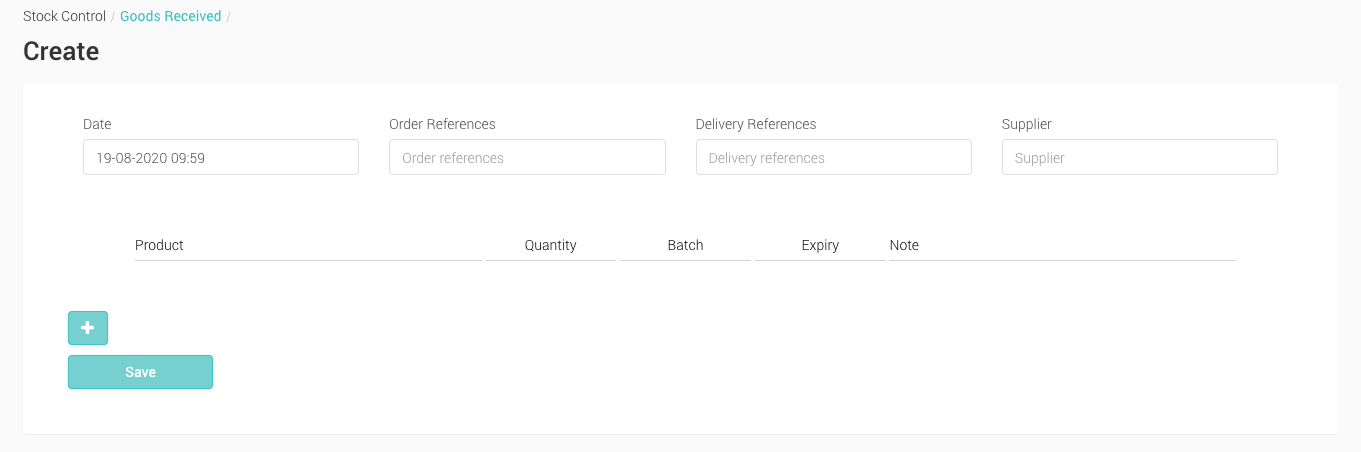
- Order Reference Enter an optional order reference from your company
- Delivery Reference Enter an optional delivery reference from the supplier
- Supplier Optionally enter the supplier’s name
- Product Select from the product list
- Quantity Enter a value – this will be added to the existing stock value of the product selected above
- Batch Enter a batch number – this will be associated with the product, and selectable by the practitioner when marking up a Treatment Photo
- Expiry Select an Expiry date – this will be displayed alongside the product name on Treatment Photos
- Note Enter any additional information as required
- Truck icon The icon defaults to on indicating that the product has arrived. By clicking it off, you are indicating that the product was not received and the stock will not be increased at this time
- Add new Add another line item to the GRN and select another product
- Save or Cancel Save the GRN or Cancel
- Select + Add new to add a product
- Select a product from the list
- Enter Quantity, Batch and Expiry Date
- Repeat as needed
- Click ‘Save’ to save the note. The quantity will be added to stock, the batch number will be added to batch, ready for selection on the Practitioner App – Treatment Photos