
Once a patient has answered all the questions in a questionnaire, the answers are logged and viewable by a practitioner using the Practitioner App. In order to store the completed questionnaire, the practitioner must complete the questionnaire by asking the patient to confirm the answers and sign the document. Completed questionnaires are then viewable in the Control Centre.
- Once the patient has completed a questionnaire in Patient Mode, exit Patient Mode by tapping the “Back” button and entering your PIN.
- Select the patient from the patient list.
- Select ‘Questionnaires’ from the left hand menu of the Consultation Tool.
- The right hand window will refresh to display ‘Recently Completed’ and ‘Archived’ questionnaires.
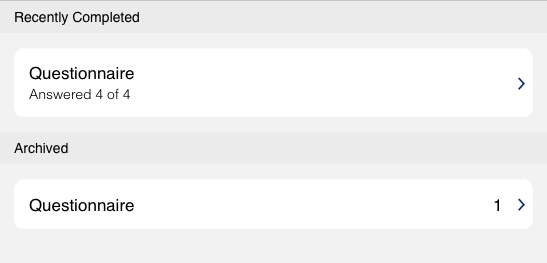
- Recently Completed Displays a list of questionnaires that have been completed, but remain unsigned. These are editable by the Practitioner
- Archived Displays a list of completed and signed questionnaires. The documents are uneditable and will load in a new window
- Select the questionnaite you wish to complete from the list of ‘Recently Completed’ questionnaires.
- Confirm with your patient that the answers are correct.
- Once all the answers are correct, tap the ‘Sign’ button on the top right hand side of the screen.
- The final completed questionnaire will be displayed, along with a gray signiture box.
- The patient can then sign the document using the ‘pen’ icon and their finger.
- Tap ‘Save’ once the process is complete.
- This will then create a completed document in the ‘Archive’ section. This document will also be accessible from the ‘Questionnaire’ section of the Patient record in the Control Centre.