
Treatment Categories are assigned to Appointments, Consultation & Treatment Notes and Treatment Photographs.
- From the Control Centre select ‘Set up’ from the menu drawer.
- Select the “Treatment” page.
- Any existing treatments will be listed here.
- Click the ‘+’ icon to ‘Add Treatment’.
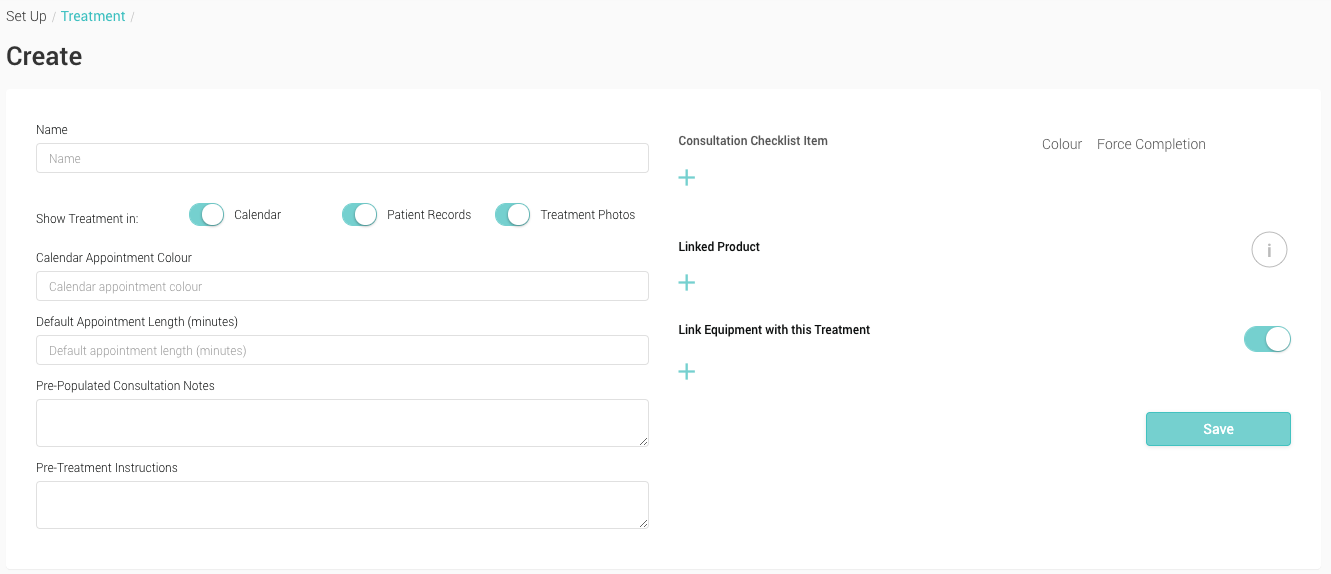
- Name The name of the treatment
- Show Treatment in Calendar Leaving this box ticked will include the treatment in the list of treatments when booking an appointment in the Calendar
- Show Treatment in Patient Records Leaving this box ticked will include the treatment in the list of treatments when recording a consultation note in the Practitioner Application
- Show Treatment in Treatment Photos Leaving this box ticked will include the treatment in the list of treatments when marking a photograph in the Practitioner Application
- Calendar Appointment Colour Selecting a colour using the tool will apply this colour to any appointment assigned this treatment on your calendar (the colour code is in a hex format eg.#FFFFFF and will only affect ‘Practitioner’ Calendar layouts)
- Default Appointment Length (in minutes) The amount of time for any appointments assigned this treatment. It will overwrite the clinic default time
- Pre-Populated Consultation Notes A useful time saving tool. Add notes here that will populate your consultation notes on the Practitioner App
- Pre-Treatment Instructions Used with Online Booking – when a treatment is booked these additional instructions will be sent to the patient via email
- Consultation Checklist item Add a checklist of items to the Treatment notes on the Practitioner App. By selecting the ‘Force Completion’ on a line item, the practitioner will have to mark the item as complete to proceed.
- Link Product Add products to the Treatment to be able to choose them for marking up Treatment photographs on the Practitioner App – this is an important step
- Link Equipment with this Treatment Optionally select equipment that can be associated with this treatment
IMPORTANT – Any Products added to the Treatment will be available for selection on the Practitioner Application for recording usage by marking photographs under Treatment Photo
- Once completed click the ‘Save’ button