
Prepayments allow for the recording of monies taken before a treatment has been dispensed.
Prepayments can have a treatment, quantity and £ amount assigned to them.
When redeeming a prepayment against an invoice, you will be able to select a specific prepayment and reduce the amount and quantity of treatments remaining.
- From the Control Centre, select Patients and choose the patient.
- Select ‘Account’ followed by ‘View/Add to Account’
- Click the ‘+Pre’ button to add a prepayment
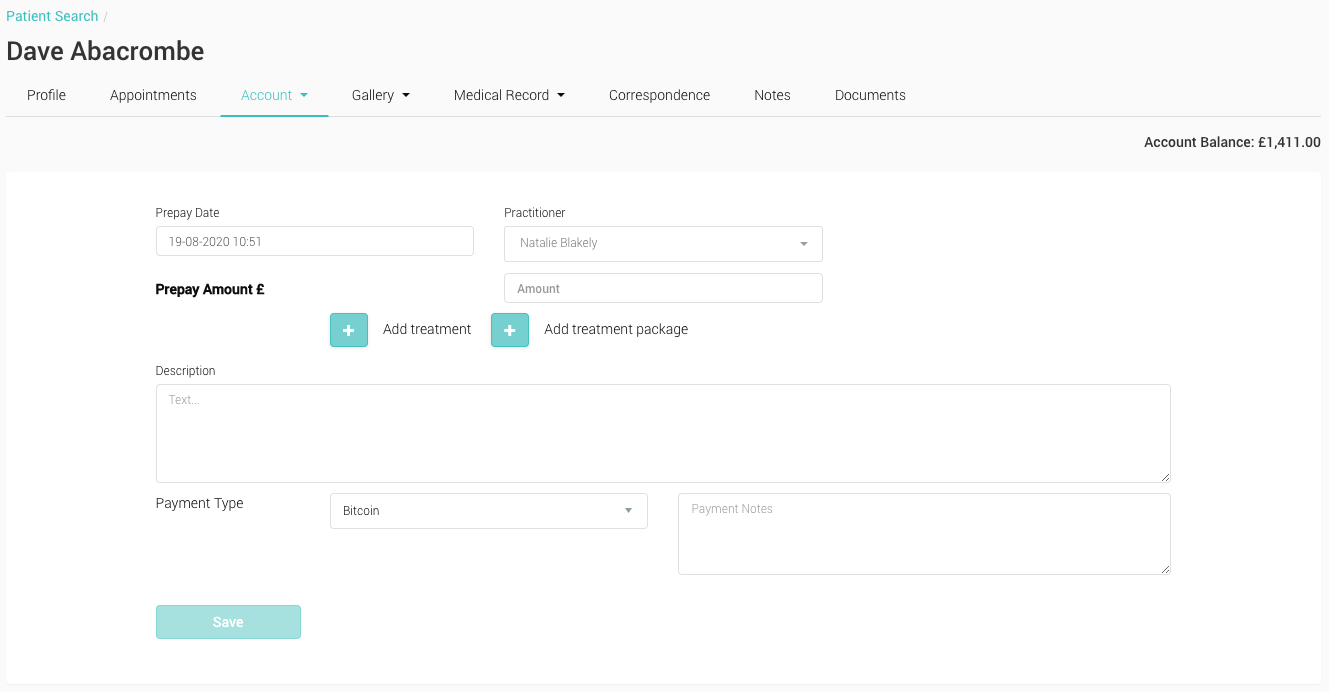
- Prepay Date Will default to current time and date can be changed if needed
- Practitioner Select a Practitioner to assign to this Prepayment for record keeping
- Prepay Amount £ The total value of the prepayment
- Add item Add any treatments that make up the prepayment, and assign a quantity to them. Each time a prepayment is redeemed against an invocie the qunatitiy remaining can be reduced
- Description Optional Description of the Prepayment
- Payment Type Select the payment type used to pay for the prepayment
- Payment Notes Optional notes on payment method used
- Select a Practitioner
- Enter an amount for the total value of the Prepayment
- Click ‘Add item’ and select one or more treatments to add to the prepayment
- Add a ‘Quantity’ to each treatment.
- Add a ‘Description’ and ‘Payment Note’ if required
- Finally select a ‘Payment Type’ and click ‘Save’

- The new prepayment will appear on the Patient’s Account page, and the value will be added to their Total Account Balance
- For more information on this particular prepayment, select the ‘View Prepayment’ option from the Account menu