
Consent forms can be uploaded through the Control Centre. They will be accessible for viewing and signing from the Practitioner App, and once completed, will be registered against a Patient record.
Consent Forms must be in .pdf format.
- To add a new consent form select from ‘Set Up’ from the bottom of the Control Centre menu drawer
- Select ‘Consent Forms’
- A list of current Consentz Forms will be displayed.

- Name The name of the consent form
- Date The date the consent form was uploaded
- Enabled Ticking this box makes the consent form accessible in the Practitioner App
- Delete Clicking the icon will delete the consent form
- Click the “+” icon to add a Consent Form.
- A ‘New Consent Form’ window will load.
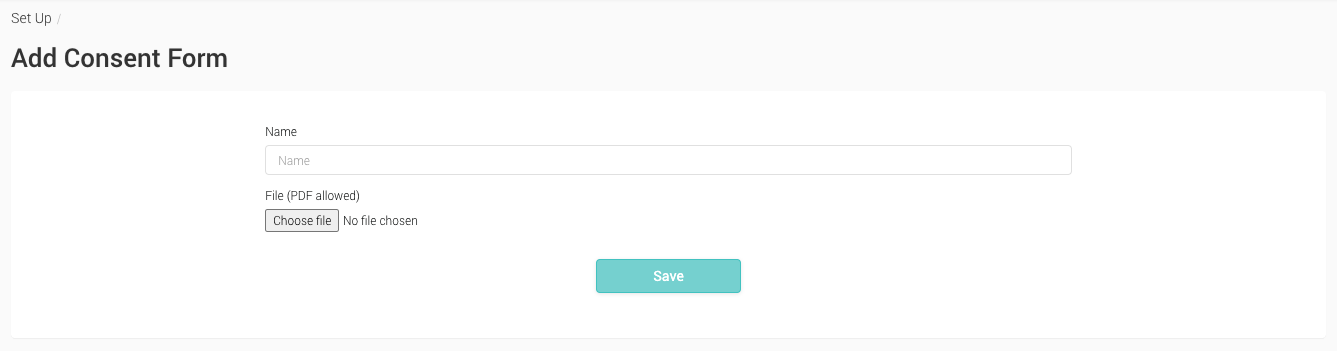
- Enter the name for the new consent Form you wish to upload. This will be used to indicate the consent form in the Practitioner App and against the Patient Record. It does not have to be the same as the file name.
- Click “Browse” to locate the consent form file for uploading.
- Your computer’s file browser will appear in a new window. Navigate to the file for the Consent form and select it.
- Once uploaded, click “Save”.
- You will be returned to the “Consent Form” list page, where your new consent form will be listed.
You can view a consent form by clicking on the name of the form in the form list.