
Coming Easter 2021
Consentz has integrated with the popular video conferencing platform Zoom to enable appointments to be completed via video. When booking an appointment, the video option can be selected allowing access to both Practitioner and Patient via a secure video connection.
Setting up the Practitioner’s Zoom account
Each practitioner will be required to link their user account to a Zoom account in order to perform a Video appointment. To create a Zoom account, please visit the Zoom website.
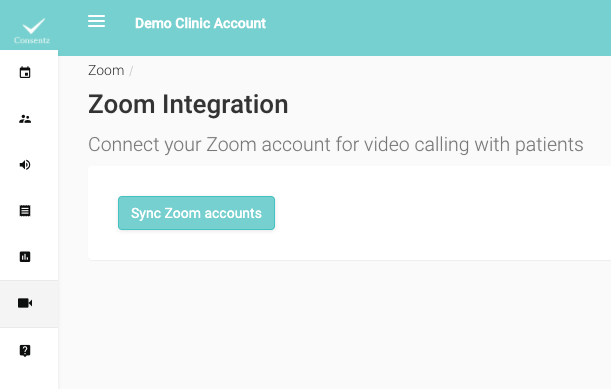
To link accounts:
- Log into the Control Centre as a Practitioner
- Navigate to the ‘Zoom’ menu in the menu drawer
- On the new page, select the ‘Sync Zoom Accounts’ button
- This will take you out of Consentz and ask you to log into your Zoom account
- Once the process is complete and you are returned to the Control Centre, your accounts will be linked and you will be ready to organise a video appointment
Initiating a Video call
When creating an appointment from the Control Centre the option to mark it as a video appointment will present itself to the user.
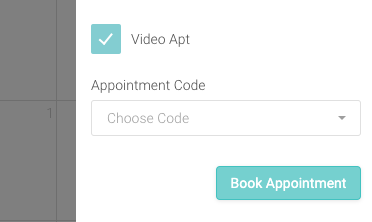
- From Scheduling -> Calendar click the + button to initiate the creation of a new appointment
- Enter Practitioner, Patient, Times and Treatment details as normal
- Tick the ‘Video Apt’ tick box to mark this appointment as a video call
- Save the Appointment
The patient will receive an email with details about the appointment and a link to initiate the video call.
The Practitioner can initiate the call from the Control Centre Calendar page. Click the appointment on the Calendar, and on the pop up window which displays information regarding the appointment, click the ‘Meeting’ button.
The video call will be displayed alongside a Treatment Note window, where the Practitioner can record details of the call. Notes will be recorded against the corresponding patient record.
Removing the link with Zoom
- Login to your Zoom Account and navigate to the Zoom App Marketplace
- Click Manage > Installed Apps or search for Consentz app
- Click the Consentz app
- Click Uninstall