
Consentz has integrated with the Xero accounting platform which allows for the transmission of invoices created in Consentz to be synced with your Xero account.
In order to set up the link you will require:
- a Xero account
- the username of each Practitioner in your clinic
To link the accounts:
From the Control Centre
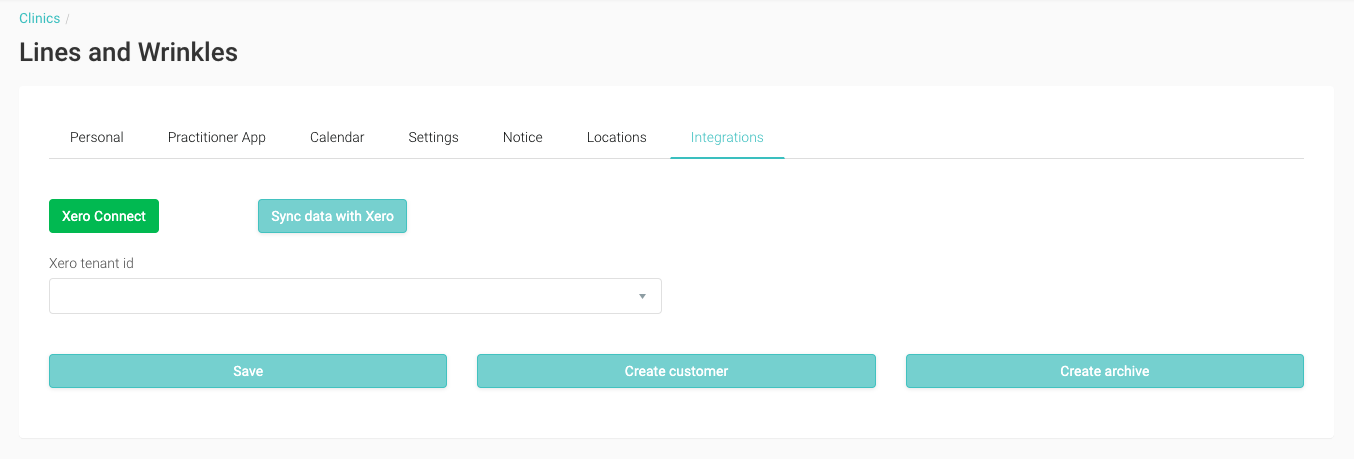
- Navigate to ‘Settings’ – the middle of the three grey buttons at the bottom of the Menu Drawer
- Select the ‘Profile’ option
- Select the ‘Integrations’ tab
- Existing Xero accounts will be displayed here in future – currently it will be empty
- Click the ‘Xero Connect’ button you will begin the process of linking the accounts
At this point you will be taken to the Xero log in screen and asked to log into your Xero account. Upon successful log in you will be asked to link your account with Consentz.
- Once back to Consentz – return to the ‘Integrations’ tab and click on the ‘Save’ button
From your Xero account
There is one additional step to be completed within the Xero account and that is to add ‘Practitioners’ as customers.
Practitioners are the ‘treatment providers’ within Consentz and their names are attached to each invoice they generate within Consentz. As such we need to add them as ‘contacts’ in the linked Xero account.
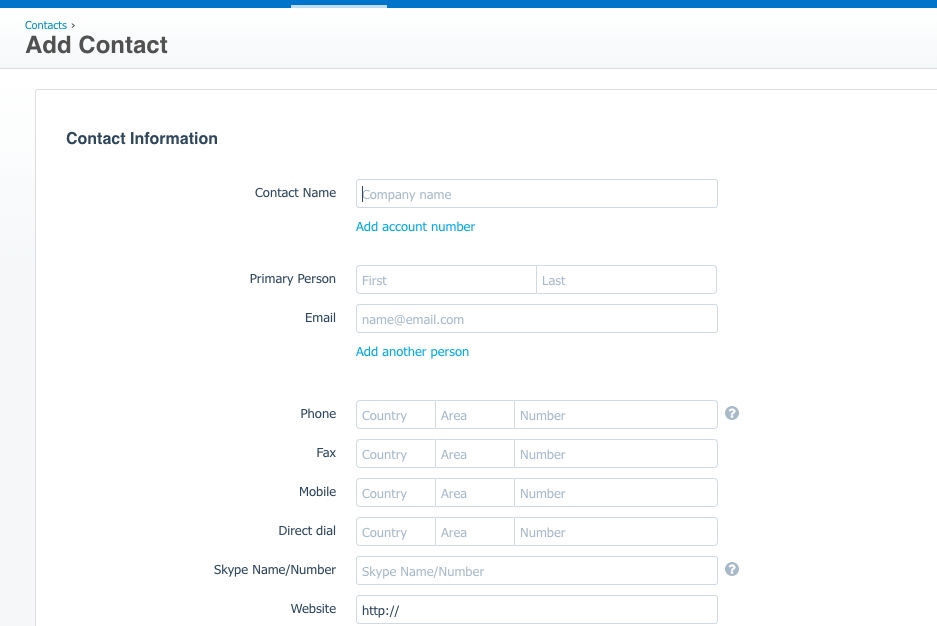
- In Xero if you select ‘Contacts’
- Select the ‘Add Contact’ button
- Enter the Practitioner’s name into ‘Contact name’
- Click ‘Add account number’
- Enter the Practitioner’s Consentz username (found under the Teams page within the Control Centre) into the ‘Account number’ field.
- Save the Contact
- Repeat this process for each practitioner that will generate invoices in Consentz
This completes the Xero link.
There is an automatic sync of data scheduled for approximately 1am each day.