Both questionnaires and consent forms can be sent to a patient before an appointment takes place, so that they can be completed before they set foot in the clinic. Forms will be accessed via a web link and can be completed on any browser.
Once set up, an email request with link will go out automatically when an appointment is booked, unless the request is overwritten. They can be also sent manually at any time.
Set Up
- On the Control Centre, select the ‘Settings’ tab at the bottom of the Menu Drawer
- Select the ‘Messaging’ Menu
- Select the ‘Pre Appointment Forms’ Menu

- Treatment Select from your Treatment list. Forms will be associated with this treatment and sent when an appointment is booked with this treatment
- Forms Select from your Consent Forms – the selected form will be associated with the Treatment
- Questionnaire Select from your Questionnaires – the selected questionnaire will be associated with the Treatment
- Once the selection has been made, click the ‘Add’ button to complete the process
Overwriting a Request
- Select ‘Schedule’
- Click the add button to create a new appointment
- Enter appointment details
- To not send a request to complete any forms, untick the ‘Send form(s)’ box
- Save the appointment as normal
Manually sending a Request
- From the Control Centre, select the patient you wish to send forms to
- Select the patient’s Correspondence tab
- Click on the third button with the paper plane icon

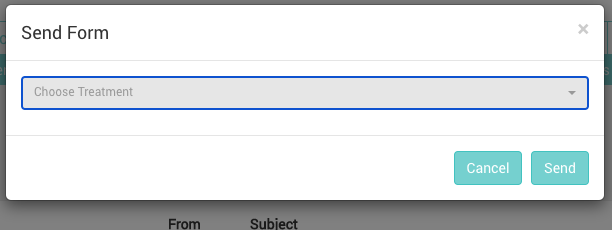
- A pop up window will appear
- Select from the list of Treatments. Doing so will send the corresponding questionnaire and consent form as set up under the Messaging tab above
- A copy of the email will be added to the Patient’s Correspondence list, and should be visible in the list