
Prepay Packages group together collections of Treatments in pre defined packages that can then be purchased by a Patient.
Multiple treatments can be assigned and saved to a Prepayment Package, as well as a specific package price.
Prepay Packages can be purchased by Patients in much the same way as Prepayments.
To create a Prepay Package:
- From the Control Centre, select ‘Set Up’ from the bottom of the Menu Drawer
- Select ‘Prepay Packages’
- Click ‘+’ at the top of the screen to add a new package.
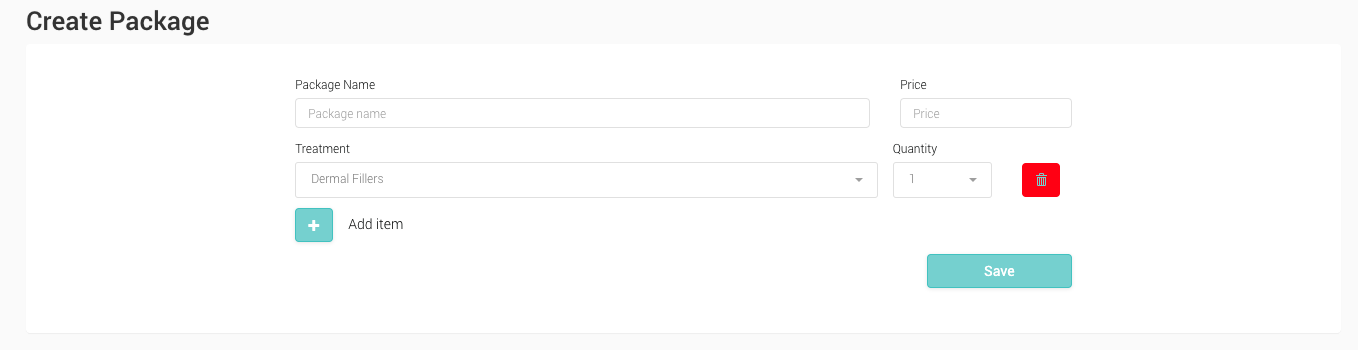
- Package NameThe name of the Package
- Price The sale price of the Package ie. how much the patient will pay
- Treatment Treatments that make up the packages
- Quantity The number of Treatments that make up the packages
- Enter a name into the Package name field
- Enter a number into the Price field. This will be the price paid from the entire package (you may wish to do this after having added Treatments)
- Click ‘Add item’
- Please note, if Treatments have not be organised into groups, the only option available will be ‘No Group’ – select this to be presented with a list of treatments
- Select the necessary Treatment
- Add a value into the Quantity field
- Repeat for multiple treatments as required
- Click on ‘Save’ to save the package
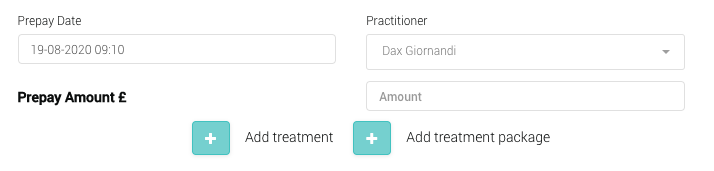
- The new prepayment package will be accessible from the Prepayment screen when creating prepayments (from the patient record -> Account -> View/Add to Account -> Add Prepay)
- Select ‘Add Treatment Package’ to be presented with a list of available Treatment Packages
- Complete the Prepayment to allocate the package and balance to the Patient
More information on the Prepay menu can be found here.