
In the Correspondence section of the Patient Record, you can save your correspondence as a template, allowing you to recall the content when required. This allows for consistent letter writing and when Templates are saved with metatags in place, the sending of personalised content.
Saving a Template
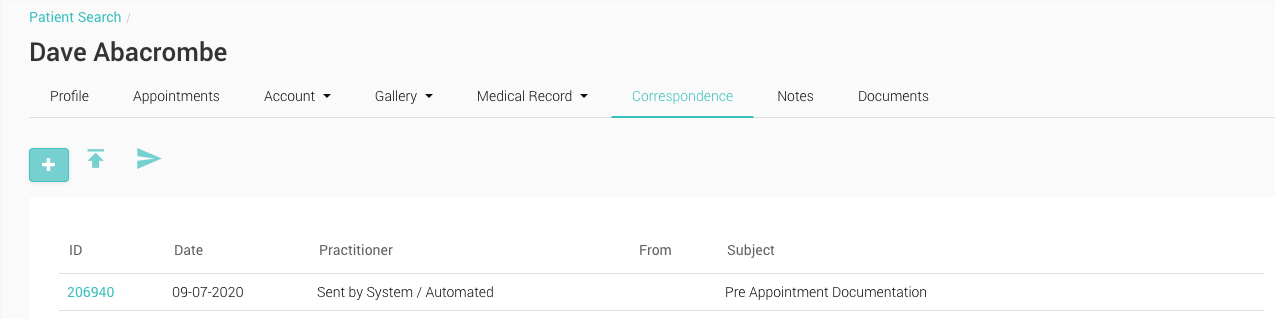
- On the Control Centre select ‘Patient’, and select a patient
- Click the ‘Correspondence’ menu
- Click the ‘+’ button
- A new correspondence page will appear with empty fields
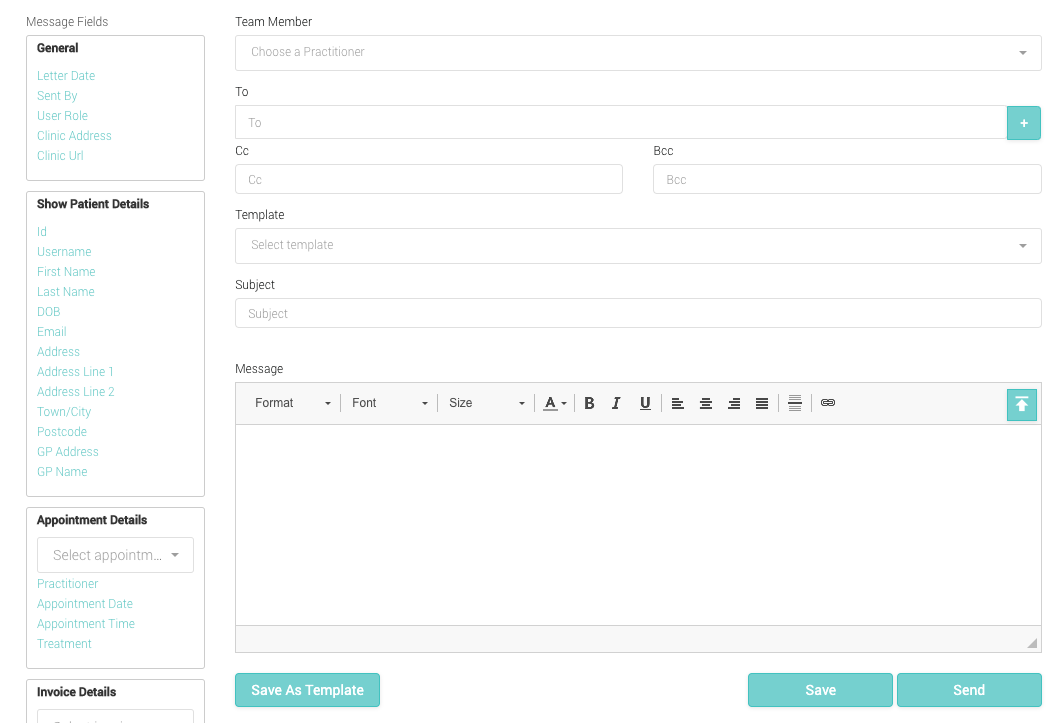
- Enter the content that you wish to turn into a template into the main ‘message’ window
- For templates it would be beneficial to use the metatags situated on the left hand side of the screen to replace individual patient information. E.g. instead of typing the patient’s name, click ‘First name’ – this will place a tag into the message that will be automatically replaced with the patient’s name.
- Once the content is complete, click ‘Save Template’
- In the pop up window, give the template a name and click ‘Save’
- A confirmation message will appear at the top of the screen
Recalling a Template
- From the Correspondence menu, click the ‘+’ button to create a new correspondence
- From the Template drop down, select a template
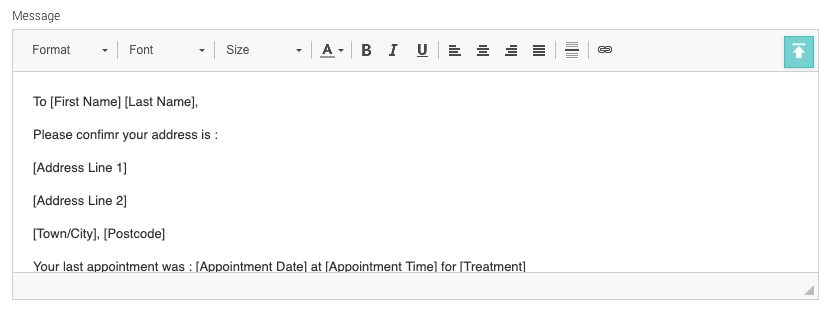
- The message field will be populated with the chosen template
- Any specific user data can be selected from the dropdowns on the left hand side of the screen before sending the correspondence. E.g. selecting an appointment will replace ‘appointment date’ with the date of the selected appointment