Skip to content
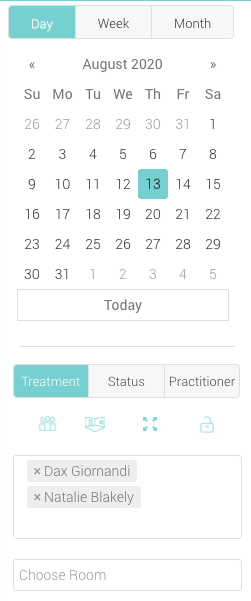
- View Selection Select Day / Week / Month depending on the information you wish to view. In Week / Month views you can scroll the calendar left and right to view other practitioners and rooms
- Mini Calendar
- Today Clicking on this will return you to today’s date
- Appointment View Switch between different appointment views which highlights appointments in different colours to display the selected information
- Practitioner – highlights a practitioner’s appointments in the practitioners colours
- Treatment – highlights appointments by their treatment colours
- Status – highlights appointments bases on their confirmation status
- View Buttons These four buttons control the visibility of information on the calendar and can be used to change the selected viewed data
- Practitioners – View all / no practitioners
- Rooms – View all / no rooms
- Full Screen – Enter full screen mode with the calendar
- Padlock – Hide on screen patient information
- Practitioner Selector Select from the drop down which Practitioners are visible in the Calendar. They can be added or removed individually using this field.
- Room Selector Select from the drop down which Rooms are visible in the Calendar. They can be added or removed individually using this field.
- + Button Add a new appointment by clicking the + button, which will cause the new appointment window to appear, allowing you to enter the information for a new appointment. You can also start the appointment creation process by clicking directly on the calendar on a time slot you wish to book
