
With the new Control Centre Calendar (introduced Feb’19) you can ‘lift’ or ‘cut’ an appointment and move it to another date by following the procedure below.
Moving the Appointment
- On the Control Centre, select the appointment you wish to move and click on the patient’s name
- A pop up window will appear with the details of the appointment
- In the top left hand side of the pop up is a icon
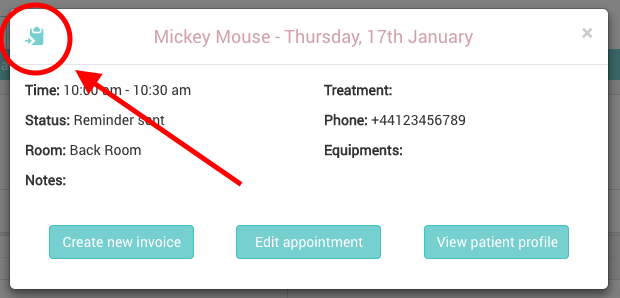
- Click the icon, a pop up window will appear confirming the appointment selection
- On the calendar, navigate to the required day where you would like to move the appointment to
- Click on the time slot on the calendar that you would like to move the appointment to
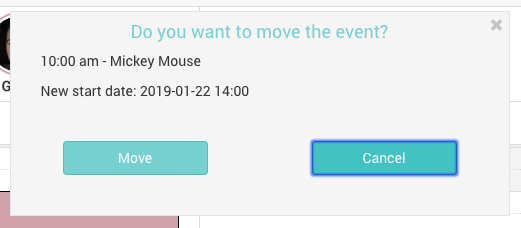
- A pop up window will appear asking for confirmation of the move – select ‘move’ to confirm or ‘cancel’ to cancel
You can use this technique for any appointment – however, if you wish to move the appointment to a different time on the same day, you may find it easier to simply ‘drag & drop’ the appointment.