
Vouchers can be generated from the Control Centre, and the code can then be redeemed by the individual, or any other individual they choose to share the code with, against future invoices.
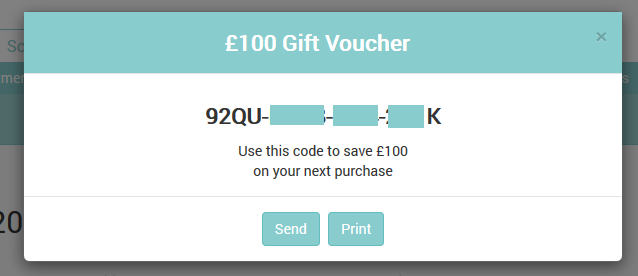
Generating a voucher
- On the Control Centre, select the patient who wishes to purchase a voucher and enter their record from the Patient menu
- Select ‘Account’ from the sub menu select ‘View/Add to Account’
- Click the add invoice ‘+INV” button
- Select a practitioner, and under ‘Price List’ choose ‘Gift Voucher £0.00’
- This will alter the screen, and ask for you to enter a voucher amount
- Once entered, click on ‘Save’ to generate and invoice
- The invoice for vouchers is the same as any other invoice, and will require approving and paying
- Once paid in full, a voucher code will be generated. This will appear in the ‘History’ section at the bottom of the invoice, and can also be seen by clicking the ‘voucher icon’ at the end of the item row

You can send a voucher by clicking on the voucher icon, which will generate a pop up window similar to the one at the top of this article.
- Send Will email the voucher to the patient
- Print Will print a copy of the voucher
Using Vouchers

- Once an invoice has been created and approved, a voucher can be applied to it
- Simply enter the code into ‘Voucher Code’ area and click ‘Apply’
- The corresponding value of the voucher code will be applied to the invoice