
Consentz integration with MailChimp allows for the syncronization of opted-in patient’s details with MailChimp’s ‘Lists’. This is done by linking a MailChimp account with Consentz through a generated ‘API key’ code.
A MailChimp account is required
Setting Up a MailChimp Account & Generating an API Key

- Mailchimp can be found by following this link and selecting ‘Sign Up Free’ for new users, or ‘Log In’ for existing account holders.
- Once the account has been set up, follow this link to generate an API key. More instructions on how to do this can be found on the MailChimp site by following this link.
- Once the API key has been generated, copy the long code.
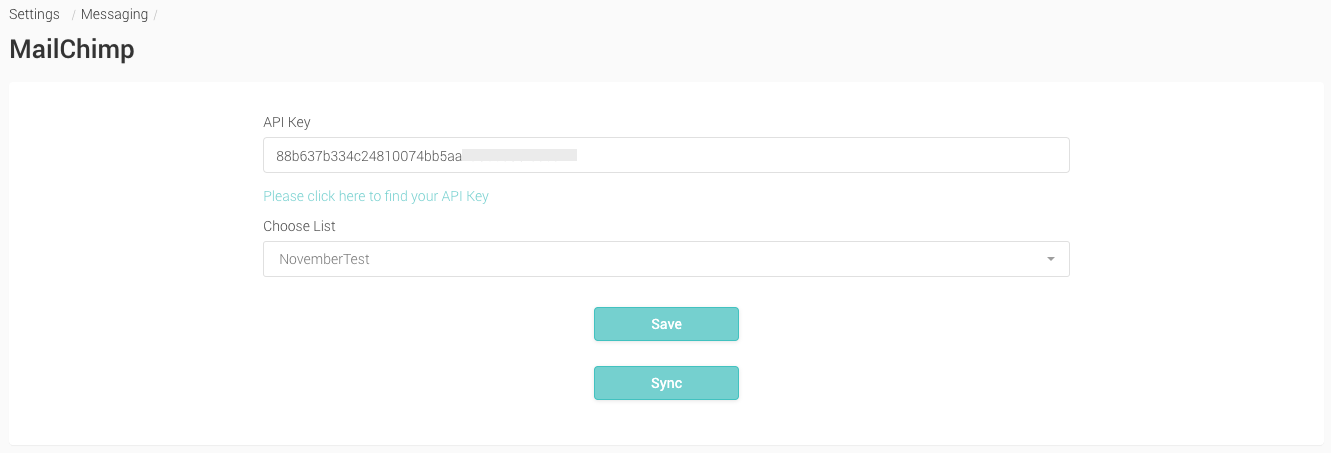
- In the Consentz Control Centre, select ‘Settings’ followed by ‘Messaging’.
- Select MailChimp.
- You will be requested to enter the API key. Paste the copied API key into that field and hit Save.
- Once the connect has been established, a list of your available MailChimp ‘lists’ will be displayed in a drop down menu entitled ‘Choose List’.
- Select the list you wish to sync with your Consentz Patient list and hit ‘Sync’
- Your opted-in patients will appear in your MailChimp List.
Once the ‘sync’ between MailChimp & Consentz has been activated, a patient’s email preferences will be updated via the following rule set:
- When a patient opts in to receive special offers via email they will be automatically added to the mailchimp list right away
- When a patient opts out of receiving special offers via email they will be automatically removed from the mailchimp list
- When a patient has been deleted from the clinic they will be automatically removed from the mailchimp list
- When a patient’s email has been updated in Consentz their email will automatically be updated in the mailchimp list
- If a patient unsubscribe via a mailchimp email their email preference will automatically be removed on their account in Consentz