
Products are considered any physical object, either those used in a treatment or sitting on a shelf ready to be purchased. All products can be linked to a Treatment for recording usage on a photograph, as well as linked to a Price List item for stock control.
- From the Control Centre select ‘Set Up’
- Select the “Product” sub menu
- Any existing products will be listed here
- Click the ‘+’ icon to ‘Add Product’
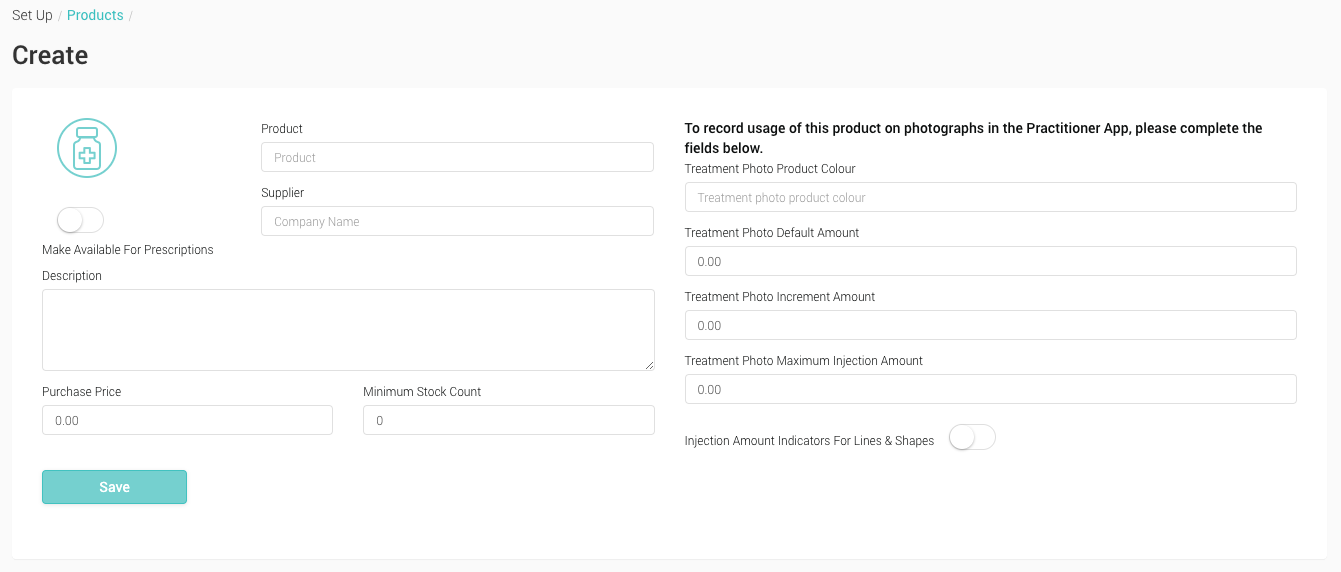
- Product The name of the product
- Supplier An optional field to record your supplier’s name
- Description An optional field to describe the product
- Purchase Price The cost price (how much you paid for the item)
- Minimum Stock Count The level at which you wish a warning to appear to remind you to reorder stock
- Treatment Photo Product Colour The colour of dots / lines / shapes when marking a photograph with this Product
- Treatment Photo Default Amount The default amount of Product to be recorded (eg. 1.0 for 1ml)
- Treatment Photo Increment Amount The amount that will be added to the default amount (eg. selecting 0.5 would add 0.5 for each button press)
- Treatment Photo Maximum Injection Amount The maximum amount to be recorded against a single point (eg. 10 for 10ml)
- Injection Amount Indicators For Lines & Shapes Toggle if you wish to record usage amounts using the lines and shape tools on photographs
The follow fields are only required if linking the Product to a Treatment for photo mark up. If the product is to be used in a treatment it is important to complete this section.
If you are planning to link the Product to a Treatment, the fields below the blue line will need to be filled in, otherwise you will only be able to record the figure zero.
If the product is not to be linked to a treatment (ie. sold directly to a customer) this section can be ignored.
- Once completed click the ‘Save’ button
- Optional In order to link the Product to a Treatment, select a Treatment from the Stock->Treatment menu