Invoices can be ‘paid’ using existing Prepayments.
For instance, a prepayment can be in the form of a deposit, and be allocated as a part payment of an invoice.
- Select and approve an invoice
- Click ‘Pay’
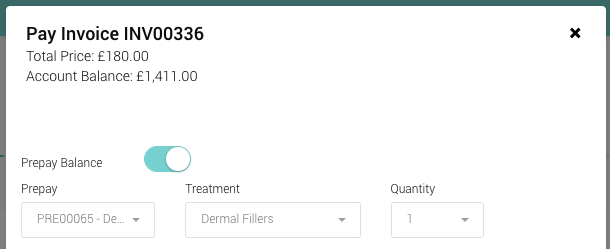
- On the pop up window, slide the slider to select ‘Prepay Balance’
- The Prepay drop down will list out all available prepayments assigned to that patient
- Once a prepayment has been selected, the available treatments assigned to that prepayment will be selectable from the treatment dropdown
- Select a treatment and quantity. The quantity selected will reduce the remaining quantity for the treatment selected
- Complete the remaining fields, and add the amount to redeem against the invoice. This amount cannot exceed the remaining account balance
- Click pay to complete the transaction. An additional line item will appear on the invoice to reflect the record

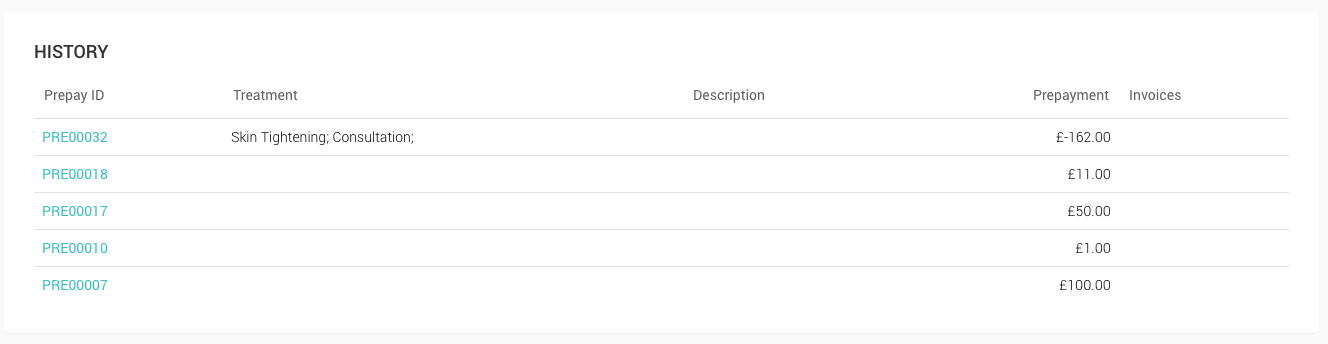
Selecting the ‘Account’ -> ‘View Prepayments’ menu for that patient will display changes made to the prepayment. If the prepayment was used in its entirety, as in the image below, it will be moved to the ‘History’ section of that page.
All prepayments will have links to the invoices that they were allocated to.