
You can lock the Consentz Practitioner App to stop unwanted exiting of the application to the iPad Home Screen. This allows you to stop other applications from being loaded on the iPad, and is particularily useful to set up if the iPad is to be used in Patient Mode. These instructions will allow you to disable the ‘Home’ button on the iPad by using features built into the iPad’s operating system.
The following steps are recommended to add an additional layer of protection against unwanted access to your clinic data.
- Enter the iPad Settings app from the iOS home screen.
- Tap ‘General’.
- Tap ‘Accessibility’.
- Look for and tap ‘Guided Access’.
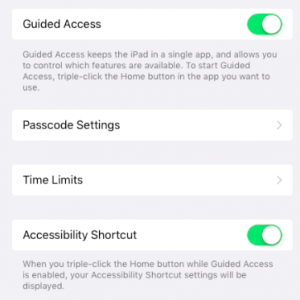
- Toggle ‘Guided Access’ to ON by sliding the slider to display a green background. A number of additional menu items will appear.
- Tap ‘Passcode Settings’, followed by ‘Set Guided Access Passcode’.
- Enter a passcode. This will have to be entered to exit an application in future. It does not need to be the same as your ‘Patient Mode’ passcode or your iPad unlock passcode.
- Back in the ‘Guided Access’ settings menu, toggle ‘Accessibility Shortcut’ to green to have Guided Access appear as an option in the Accessibility Options menu when you triple-click the iPad’s Home button.
- You have now set up the ability to prevent a user from exiting an application using the home button. The next step is to activate it for the Consentz Practitioner app.
- To prevent Consentz from being exited, open the app and press the Home button three times in quick sucession to bring up the Guided Access menu and lock the app.
- You can use some of the following options to add / block additional hardware features.
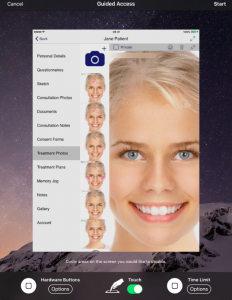
- Toggle Sleep/Wake Button OFF (white) or ON (green) to disable/enable your device’s Sleep/Wake button while in Guided Access.
- Toggle Volume Buttons OFF (white) or ON (green) to disable/enable your device’s Volume buttons while in Guided Access.
- Toggle Motion OFF (white) or ON (green) to disable/enable your device’s motion controls, such as screen rotation, in Guided Access.
- Toggle Keyboards OFF (white) or ON (green) to disable/enable your device’s onscreen keyboards in Guided Access.
Tap the Start button in the top right corner of the screen to activate Guided Access. A message stating “Guided Access Started” will briefly appear.
- To exit the Consentz App, quickly press your device’s Home button three times to bring up the Guided Access menu.
- Enter your passcode when prompted.
- Tap the End button in the top left corner of the screen. You will now be able to exit the Consentz app.