
Waiting Lists allow you to note down the preferred appointments of patients, whether with a specific practitioner at a specific time, or a range of options. It is accessed from the Control Centre.
- From the menu drawer select the “Marketinging” option.
- Select “Waiting List”.
- A list of current Waiting List information will be displayed.
- Click the “+” button to add a patient.
- A new window will load.
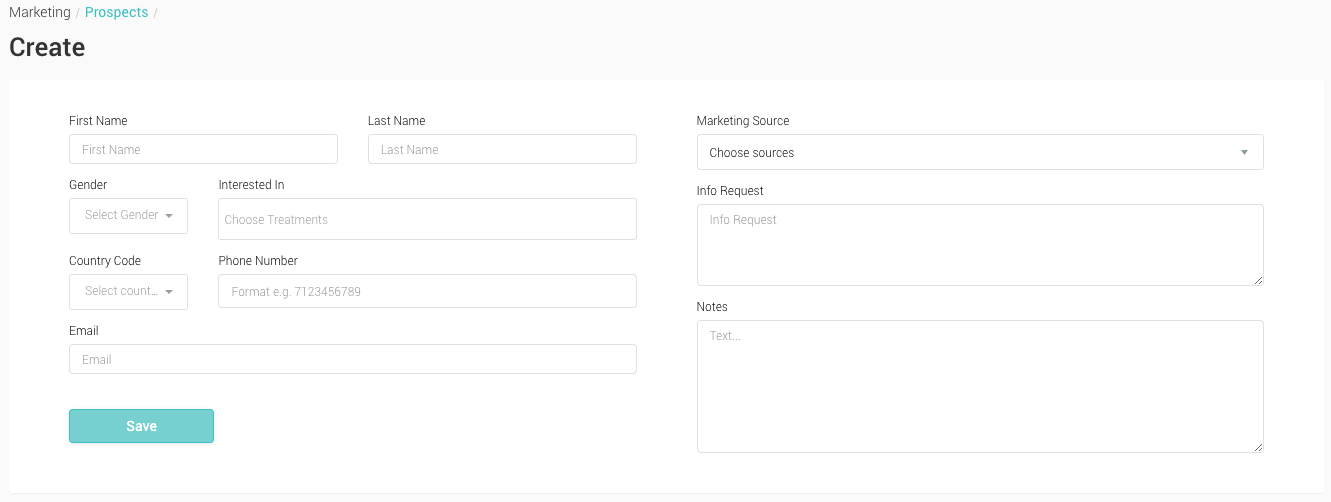
- Begin typing the name of the patient you wish to add to the Waiting List. As you type, a list of names will appear based on the letters entered. Select the patient you wish to add.
- From the Practitioner drop down menu, select the desired practitioner the patient would like to see.
- From the Treatments drop down menu, select the treatment the patient is interested in.
- In the Availability text field, enter the details of when the patient is available.
- Click ‘Save’ to save the information to your ‘Waiting List’.
- You’ll be returned to the previous page, where your can view this data in the Waiting List.