
You can create and assign roles to Team Members from the Control Centre. Team members will be able to access various functions of Consentz depending on the role assigned to them. In order to create Team members you will have to be a ‘Clinic Admin’ or ‘Super Clinic Admin’.
- From the Control Centre draw menu click the “Set Up” option
- Click the “Team” option
- A list of current Team Members will appear
- Click the ‘+’ to add a Team Member
- The New Team Member page will appear
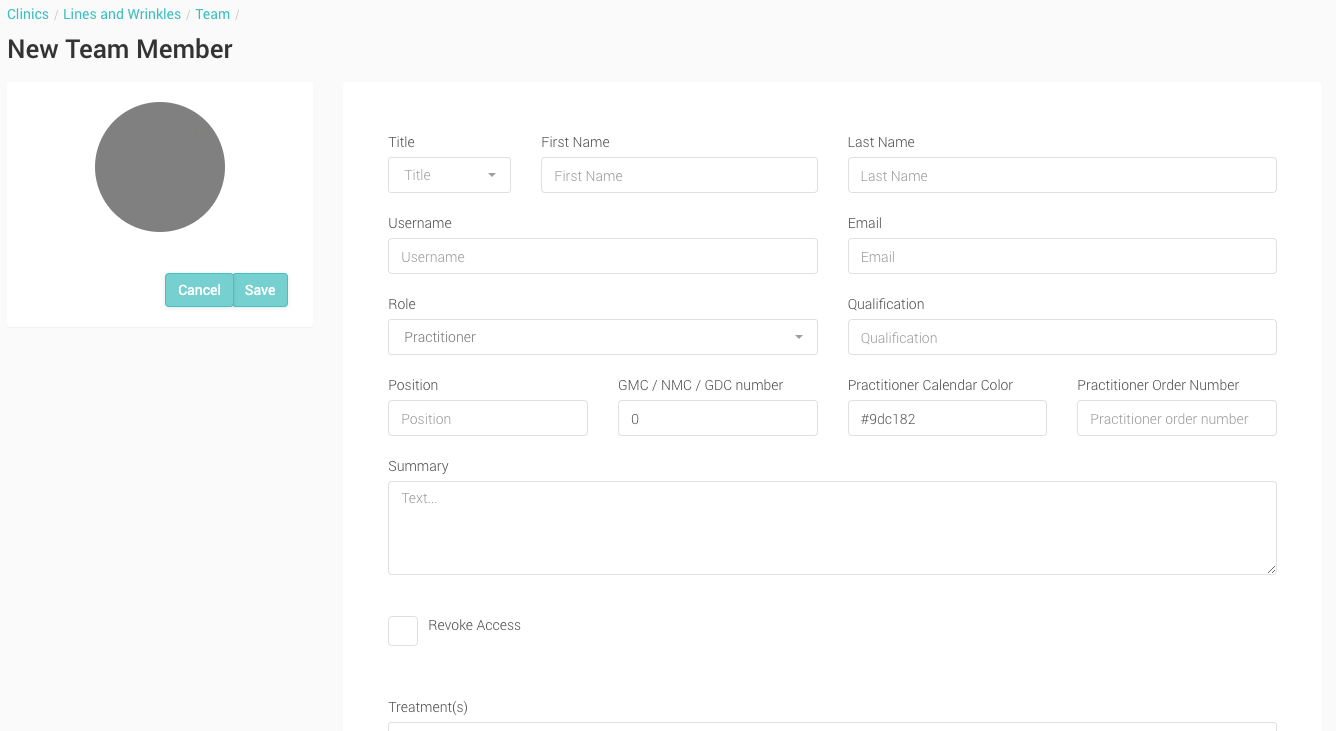
- Username The Team member’s username, used to log into Consentz
- Email The email associated with the account, and where the password setup email will be sent
- First Name Team member’s first name
- Last Name Team member’s surname
- Role Select their role at your clinic which will grant or limit their access to features
- Qualification Add a relevant qualification which will appear on their profile on the Patient App
- Summary A summary introduction which will appear on their profile on the Patient App
- Replacement Image Select a photo or logo for use with the profile
- Locked Tick this box if you need to revoke access to your clinic
- Fill in the fields with the Team Members details.
- You can add a photo for the Team Member using the Image selector.
- Should you require revoking access of the Team Member you can do so using the tick box option. They will be denied access to your clinic.
- Click ‘Save’ to create or update the Team Member.