
A Status can be assigned to each of your Patients, indicating at a glance which ones are you most valuable to your clinic. The status can be assigned and viewed in both the Control Centre and the Practitioner App.
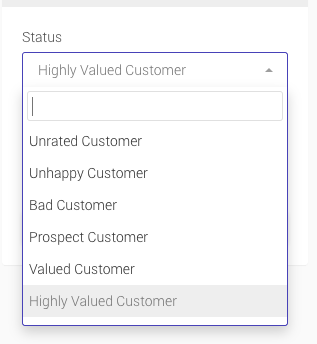
- Unrated Customer The default setting
- Bad Customer For patients you wish to avoid
- Prospect Customer For potential furture patients
- Valued Customer For patients that spend more than average
- Highly Valued Customer For your very best patients
Control Centre
- From the menu, click the “Patients” option.
- From the list of patients, locate the patient you wish to rate, and click the edit button for that patient.
- The Patient’s profile page will appear.
- Select the Status from the drop down menu at the top right of the profile.
- Click the ‘Save’ button to update the profile.
Practitioner App
- From the Home screen, tap the “Patients” option.
- From the list of patients, locate the patient you wish to rate, and tap the status button to the left of the Patient Mode button.
- The status list will appear.
- Select the Status you wish to assign the patient.
Creating bespoke Statues
- From the menu drawer of the Control Centre click “Settings” followed by ‘Preset Options” – “Patient Statuses”
- Click the + button to add a new status
- In the pop up window that appears, add a title and upload an icon
- Click the ‘Save’ button and the status will be added to the list of available statuses