
Certain Calendar settings can be managed from the Practitioner Application, including Start and End times, refresh rates and Appointment intervals.
- From the Home Screen, tap the “Settings” Option.
- Select the “Calendar” option.
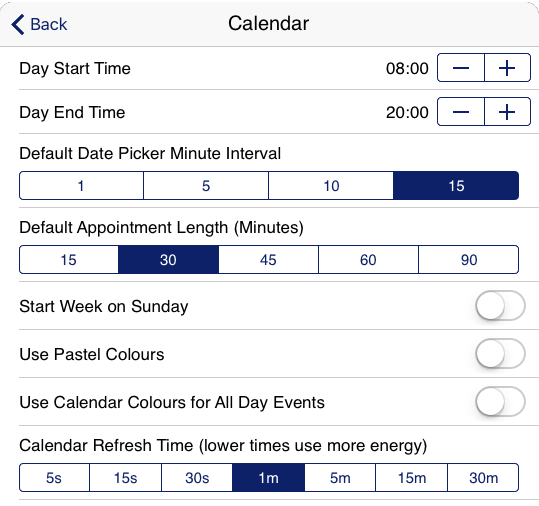
- Day Start Time Alter the start time of the Calendar Day view.
- Day End Time Alter the end time of the Calendar Day view.
- Default Date Picker Minute Interval Set the default interval between times.
- Default Appointment Length Set the default length between start and end time for an appointment.
- Start Week on Sunday Rearrange the Calendar to start the week on a Sunday.
- Use Pastel Colours Softens the colours used.
- Use Calendar Colours for All Day Events Controls the All Day event bar colour at the top of the Calendar. It will match the colour of the Practitioner.
- Calendar Refresh Time How often the Calendar refreshes
- You can alter the settings at any time. They will take effect after you return to the Settings screen.
- Start and End Time can be altered by tapping the “+” and “-” buttons to increment the times accordingly.
- The toggle switches can be set to either an on or off position.
- The Calendar Refresh Time effects how often the Calendar refreshes itself. Selecting lower times consumes more energy and shortens battery life. It is advised that you set it to the highest setting that does not have an adverse effect on usage.
- Tapping the “Back” button will return you to the Settings screen.