
Invoices can be created from the “Invoices” section of the Home Screen of the Practitioner Application.
- From the Home Screen, tap the “Invoice” Option.
- A new blank invoice will fill the screen. The invoice is only view able in portrait mode, it does not rotate into landscape.
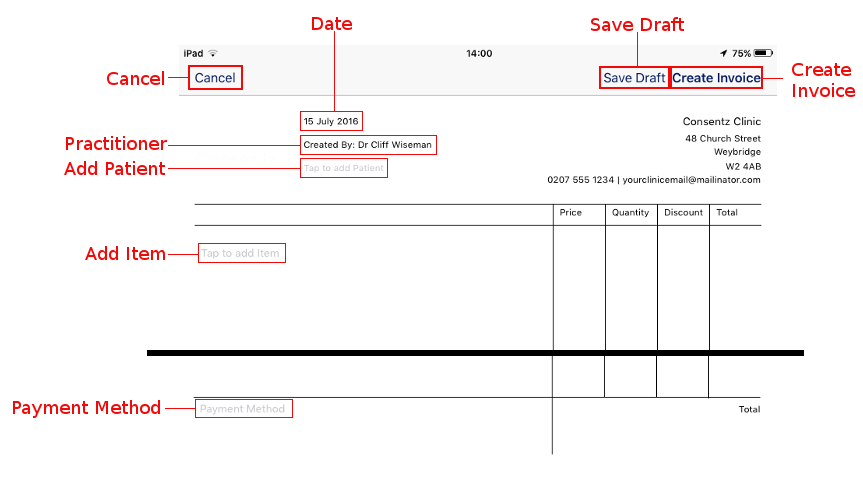
- Cancel Returns you to the Home Screen without saving the invoice.
- Save Draft Allows you to Save a Draft of the invoice. You will have to assign it to a patient before being able to save.
- Create Invoice Tapping this button creates a pdf copy of the invoice.
- Date Automatically assigns the creation date. Can be altered by tapping on it.
- Practitioner Automatically assigns the logged in Practitioner. Can be altered by tapping on it.
- Add Patient Assign the Invoice to a Patient by selecting their name from your Patient List.
- Add Item Select an item from your product list to add it to the Invoice.
- Payment Method Allows you to record a Payment Method to the Invoice.
- Assign the Invoice to a Patient by tapping the “Add Patient” line.
- Your Patient List will appear, allowing you to select the appropriate patient.
- You can alter the date and associated practitioner if needed by tapping on them.
- Tap “Add item” to select an item from you product list.
- You can add as many items are required.
- Should you need to, you can alter the Quantity, add a Discount percentage, or directly alter the Total Price of an item.
- Once payment has been taken you can record the Payment Method by selecting a method from the bottom left of the Invoice.
- You can save an incomplete Invoice at any time by tapping “Save Draft”. Saved invoices can be edited later.
- Tapping “Create Invoice” completes the invoice and creates a copy that you can Print or share. Created Invoices can no longer be edited.
Draft and Saved Invoices can be found in the Consultation Tool of the Patient the invoice is saved against.