
The Questionnaires builder allows you to build as many Questionnaires as you wish.
The first step is to create a ‘Questionnaire’, then a ‘Question’ within that questionnaire, and then choose a ‘Question Type’ for that question.
You can create as many questionnaires as required, with as many questions as you wish, of any of the four types available:
- Yes/No Create questions with straightforward ‘Yes’ and ‘No’ answers
- Text Create questions that Patients can answer with any text
- Scale Questions whose answers lie on a scale
- Multi-Choice Allow for multiple choice answers
The Questionnaire builder is accessed from the Control Centre.
- From the menu drawer, select ‘Set Up’
- Select ‘Questionnaire’ – you’ll be presented with a list of all of your existing questionnaires.
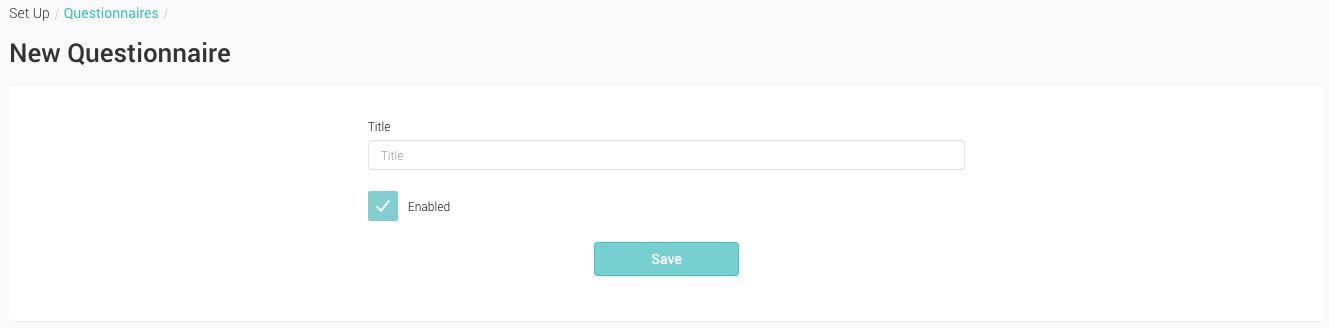
- Click the ‘+’ icon to begin creating a Questionnaire.
- Type the ‘Title’ of the Questionnaire.
- Once completed click ‘Save’ and you will be returned to the Questionnaire list.
- Select the ‘Questionnaire’ that you just created by clicking on the name of the Questionnaire in the list. This will take you to a new page that will list out the questions in your Questionnaire.
- Click the ‘+’ icon to add a Question to your Questionnaire.
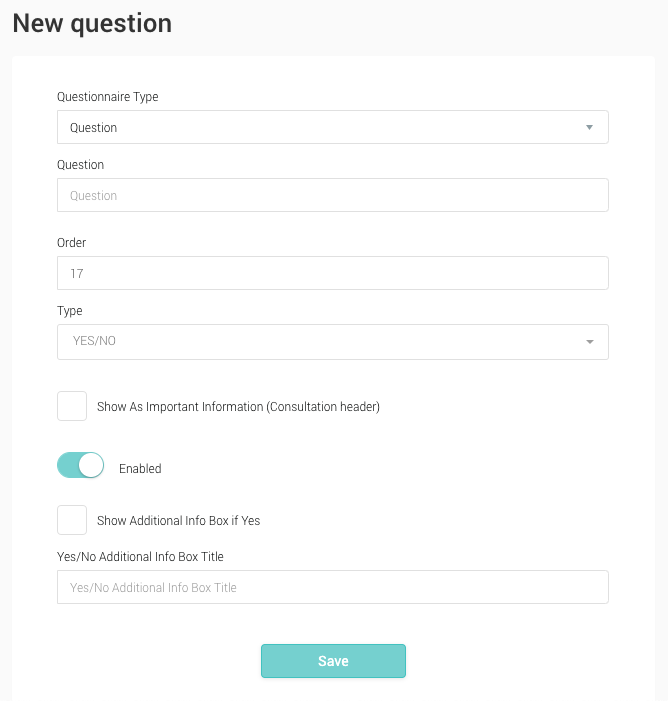
- Type the question into the ‘Title’ field – don’t forget the ?
- Select the question type. Each question has different options, however two options are consistent with all of them:
- Show as Important Information By selecting this option the answer to the question is shown at the top of all patient consultations on the Practitioner Application.
- Enabled This makes the question visible or hidden
- Show Additional Info Box if Yes By selecting this option, if the questions is answered ‘Yes’ and additional question will appear
- Additional Info Box Title Enter the text that will appear if the question is answered ‘Yes’
- Maximum Scale Value The highest number on the scale, typically ‘5’ or ’10’
- Comma Separated List of Multiple Choice Options Type in each of the options you require, separate each item with a comma ‘,’
- Once completed, click the ‘Save’ button to return to the Questionnaire screen.
- Continue to add as many questions as required.
Yes/No
Scale
Multi-Choice
Edit/Delete In order to change the titles of the Questionnaire, use the ‘Edit’ icon, which resembles a pencil, to the right of the Questionnaire. The Trash Can icon will delete the Questionnaire and all questions within it.
