It is possible to create a new patient record in both the Practitioner Application and using the Consentz Control Centre.
Below is an explanation on how to add a new patient from the Practitioner Application.
- From the Home Screen, select the “Patient” option.
- Your patient list will be displayed.
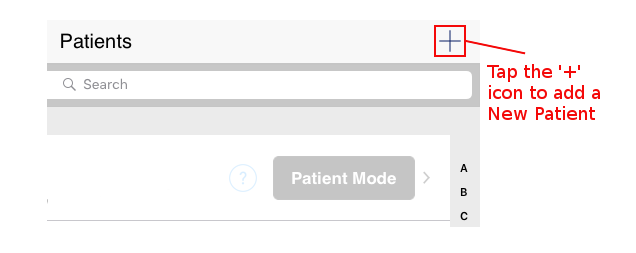
- Tap the ‘+’ button in the top right hand side of the screen to add a New Patient
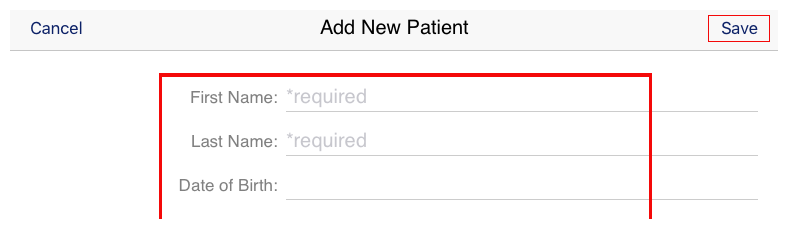
- First Name: Add the patient’s first name. This is a required field in order to save the Patient.
- Last Name: Add the patient’s last name. This is a required field in order to save the Patient.
- Date of Birth: Add the patient’s birth date to minimise the chance of duplication
- Primary Contact Number Add a contact telephone number. This is a required field in order to save the Patient.
- Secondary Contact Number Add a secondary contact telephone number
- Email Add a contact email address
- Adress Record a full postal address for the patient
- Next of Kin Add contact information for a Next of Kin
- Complete the Patient Record and tap ‘Save’